January 6, 2026

What’s the Best Screen Recorder for Mac?

Ryan

The best screen recorder for a Mac user like yourself depends on the kind of person you are. 

  • Are you the kind of person who just wants to skip the email and get your message across clearly with a quick screen recording? In that case, you’d do well with a browser-based Mac screen recorder like Tella ($13/mo) or Loom ($15/mo), both of which make it easy to record and then share a link with your colleagues. Tella, however, will give you more editing capabilities if you want to send polished videos rather than quick-and-easy Looms.

  • Or are you more like a videographer who wants cinematic style editing tools? You might be more inclined to invest in higher-end tools like Movavi (~$230/yr) or Camtasia ($2-3k/yr).

If quick screen recording and videographer are the ends of the spectrum, there are many screen recorder tools in between. There’s something for everyone. 

10 Best tools to record your Mac (based on your needs)

I’d argue the market for Mac screen recorders is oversaturated. However, the newer tools are more innovative and user-friendly. 

For example, the feeling of queuing up the screen recorder on your Mac counts for more than you might think. Having a Chrome extension to record your screen quickly and in the flow of your work feels so smooth and intuitive. That’s only available within newer screen recorders, like Tella. 
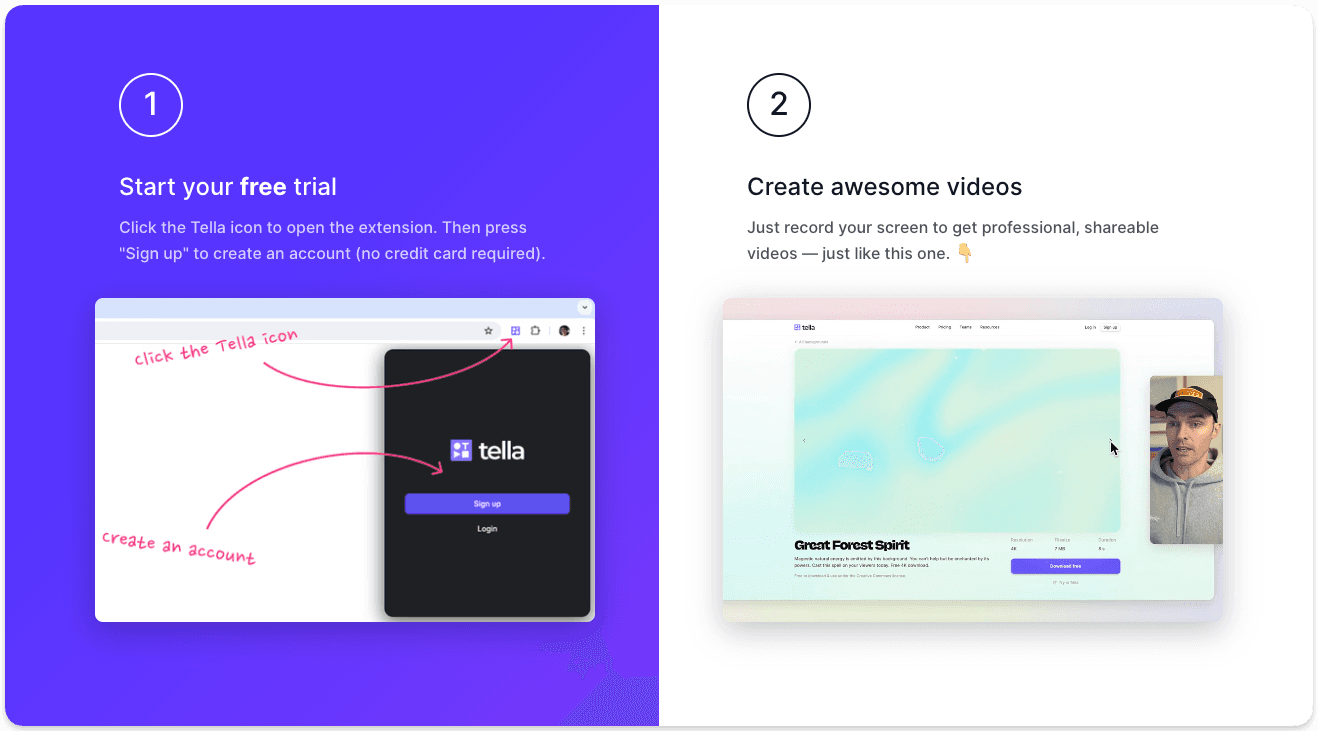
Tella's Chrome extension set up

Perhaps you want an app to save recordings to your device rather than to a browser-based cloud account? Having had my Mac for several years, I’m happy to use cloud storage and save the storage space. However, all 10 tools we’re going to break down have a Mac app. 

In this review, I’ve grouped the 10 Mac screen recorders into four quadrants based on editing control and price. For me, the most important factors in Mac screen recorders are cost and the level of editing they provide. 

These are the Mac screen recorders to download if you’re the “Make it look beautiful” kind of person:

  • Tella

  • Screen Studio

  • Supercut

These are the Mac screen capture tools, if you want it to be fast and easy:

  • CleanShot X

  • Tella

  • QuickTime (already within your Mac by default)

These are the Mac screen recording tools for the video editors who want full creative control:

  • ScreenFlow

  • Camtasia

  • Movavi Screen Recorder

  • OBS (Open Broadcaster Software)

Here’s a quick matrix. The X-axis is for the ease of use, and the Y-axis is the type of output you want, whether basic or a polished edit.

Easy | Polished

Fast, polished, easy capture tools with aesthetic editing

Advanced | Polished

Full-blown editing suites

Tella

Supercut

ScreenStudio

CleanShot X

Movavi

ScreenFlow

Camtasia

Easy | Basic

One-click record, minimal editing, quick output

Advanced | Basic

 Powerful tools, but raw output unless edited

QuickTime

Loom (free tier)

OBS (Open Broadcaster Software)

The top 10 Mac screen recorders compared

Not all Mac screen recorders are created equal, and they’re certainly not priced equally. We’ll start with the price of each tool, the features that make it worth the money, the shortcomings, and the kind of person each tool is best for. 

1. Tella
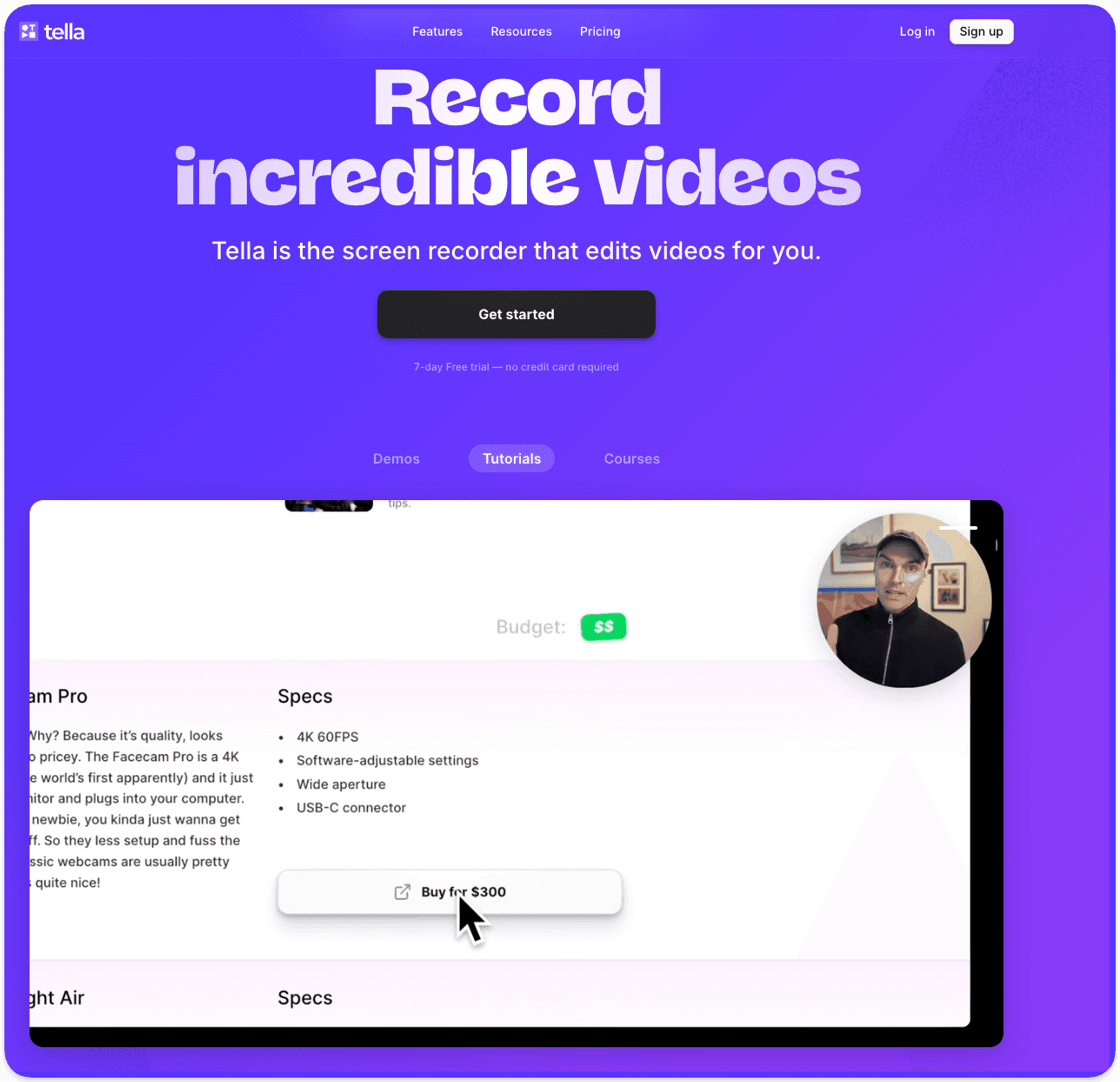
Tella's Mac Screen Recorder

How much does Tella cost?

Tella costs $26 per month for the Pro account and $39 per month for the Premium plan. If billed yearly, it cuts the cost in half, at $13 per month for Pro and $19 per month for Premium.

The big difference on the Tella Premium plan is that you get a higher level of polish with your shared videos, turning Tella into your own website. That’s snappier videos at 60 FPS (regardless of length), custom branding, a domain of your choosing, and analytics. The Premium tier is positioned for course creators and those whose videos are their product.

Likewise, Tella also has a free 7-day trial where you can make your first few videos without adding a credit card.

What are Tella’s best features?

If you want creative control over your screen recordings without having to be a professional video editor, Tella gives you the polish without the sweat equity. 

My favorite Tella features are the ability to change the layout and background of the videos. It immediately elevates my simple screen recordings to something higher quality. 

When I was planning my brother's bachelor party, I sent a quick instructional video to his friends about booking info. One of them responded, “What are you, some kind of YouTuber now?” So you get the idea. This isn’t a quick Loom video of a window.
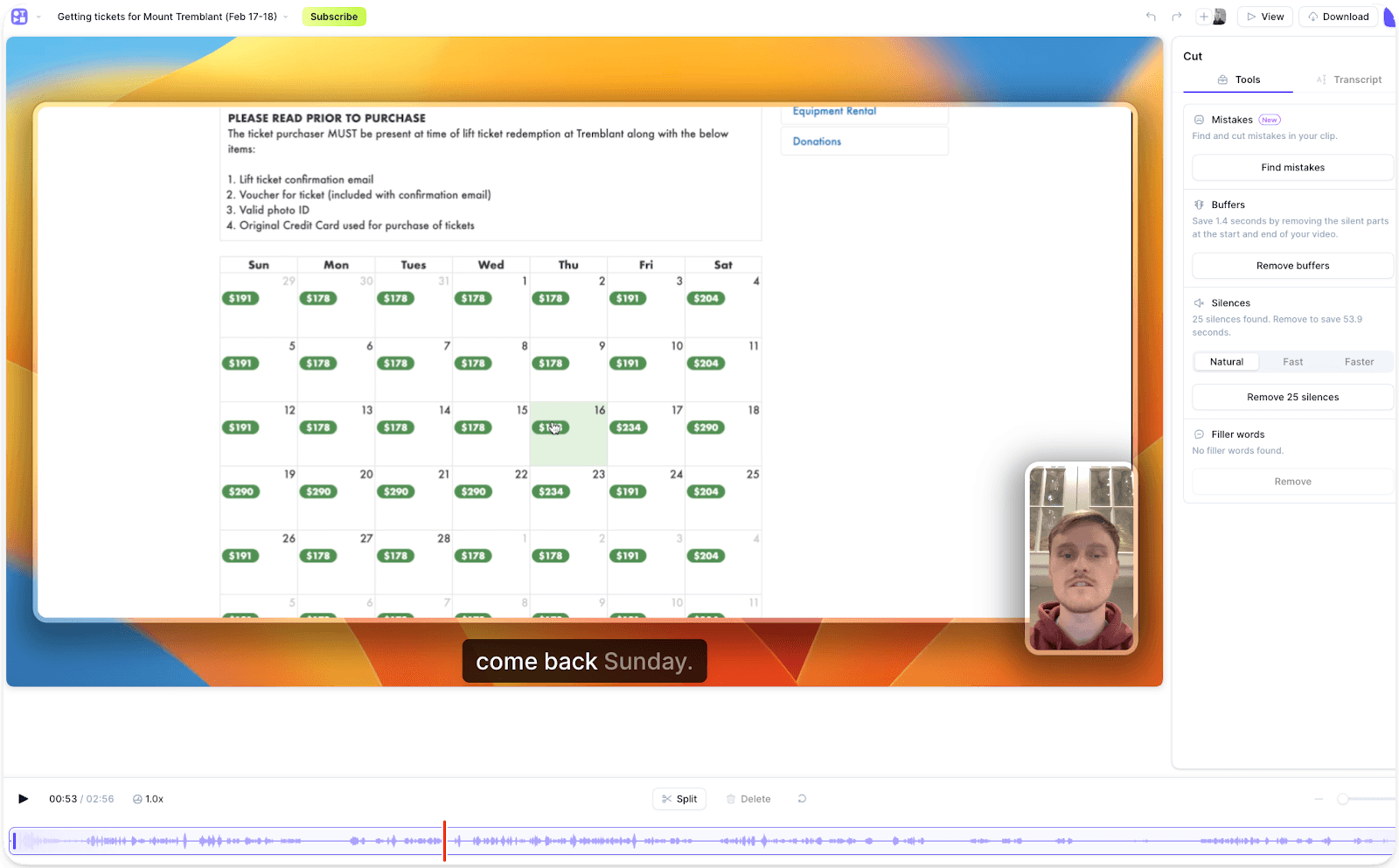
Tella's Video Editor

I also chose Tella so I can stitch multiple recordings into a single video, changing layouts if I want. The AI features, like captions and subtitles, or the auto cut, are pretty handy. I’ve found I say ‘ummm’ a lot when explaining something. Now I can get rid of them with a click after I record.

Tella is a versatile Mac recorder. People who use it will tell you it’s best for recording tutorials, courses, or demos. You can add custom effects like layouts and zoom effects, and also trim, clip, upload, and crop. 

Creators love Tella because it eliminates the steep learning curve typically required to produce high-quality videos.

Where are the drawbacks with Tella?

Tella doesn’t offer a mobile app. Instead, it prioritizes the tools that creators will find most useful, like recording on the web via the Chrome extension or in the Mac app. Other screen recorders provide a mobile app for ease of viewing, but Tella’s shareable links suffice in most cases. 

You’ll find that while Tella’s great for video editing, it’s not as focused on the internal team communications. There are no time-stamped comments or drawing tools for that reason. 

Who is Tella best for?

Tella is best for the content creator:

  • The thought leader recording their course

  • The marketer creating demos

  • The creator who wants to draw in viewers with visual appeal

Tella is recommended for those who will put a bit more effort into stylizing their videos, rather than a quick screen capture. 

In short, if you want to send your colleague a quick video, Tella can obviously work, but it might be overkill. But you will absolutely want Tella if sending a pitch to an investor or clipping social media posts.

2. Loom
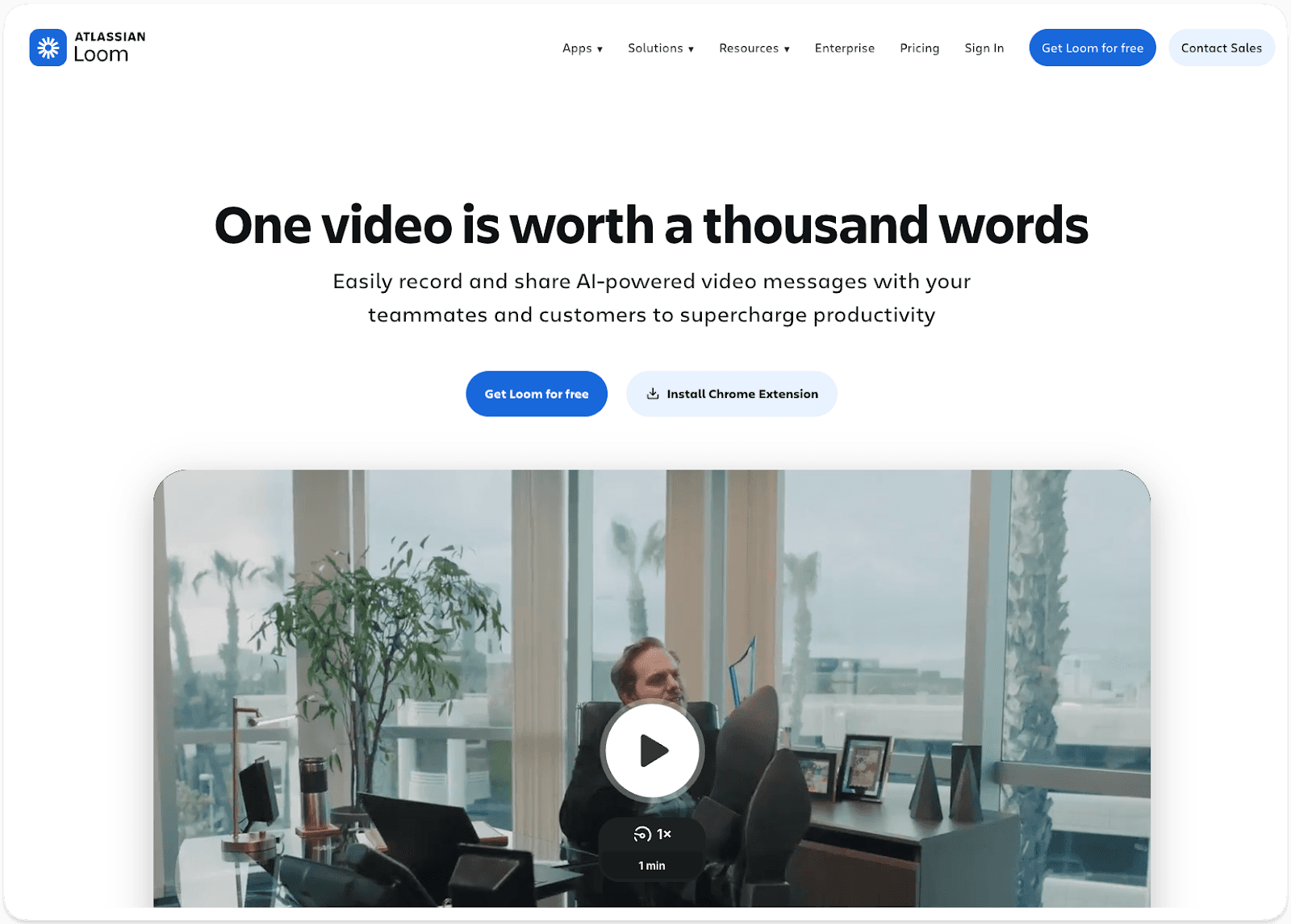
Loom screen recorder for Mac

How much does Loom cost?

Loom offers a freemium plan that limits you to recording up to 25 videos for free, each no more than 5 minutes, and includes Loom branding on your videos. The paid plans are all billed annually and start at $15 per user per month in the Business plan. That removes the limitations on the number of videos, length, and branding. You can also upload and download videos.

The Business + AI plan is $20 per user per month. As you’d expect, it includes AI features like auto meeting notes, and it will rewrite your title for you.

Its Enterprise plan is custom, so you’ll need to contact sales. 

What are Loom’s best features?

Loom offers a generous freemium plan. 25 videos is a lot. If you hit that limit, you’ve likely built a habit. You can also delete videos to extend your freemium plan. This was a huge draw for me when I needed to communicate quickly and asynchronously. 

Loom wants you to build the habit of recording your screen, so it goes to great lengths to make it easy. Its Chrome extension only takes two clicks to get started. This was what hooked me for the longest time. 
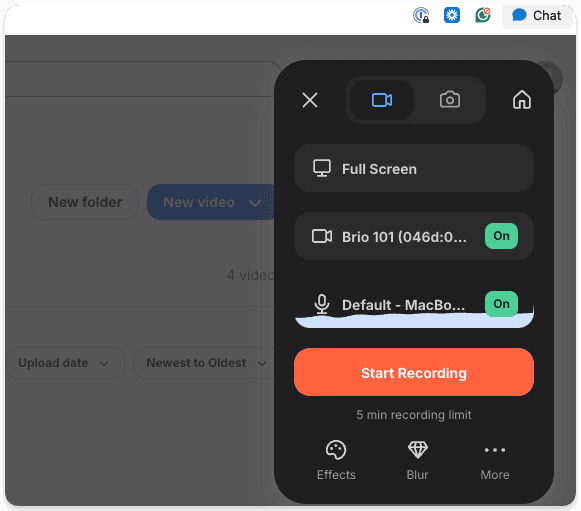
Loom's Chrome extension on a MacBook

As someone who works remotely across time zones, the collaborative features are intuitive and helpful. Sharing a link to your recording is straightforward, and I get notifications when someone views it (my new toxic trait is judging people for how long it takes them to view it). When they watch it, they can leave emoji reactions and timestamped comments, making it a go-to for feedback. The viewers can also speed up the video to 1.5x, 2x, or more (if you’re crazy).
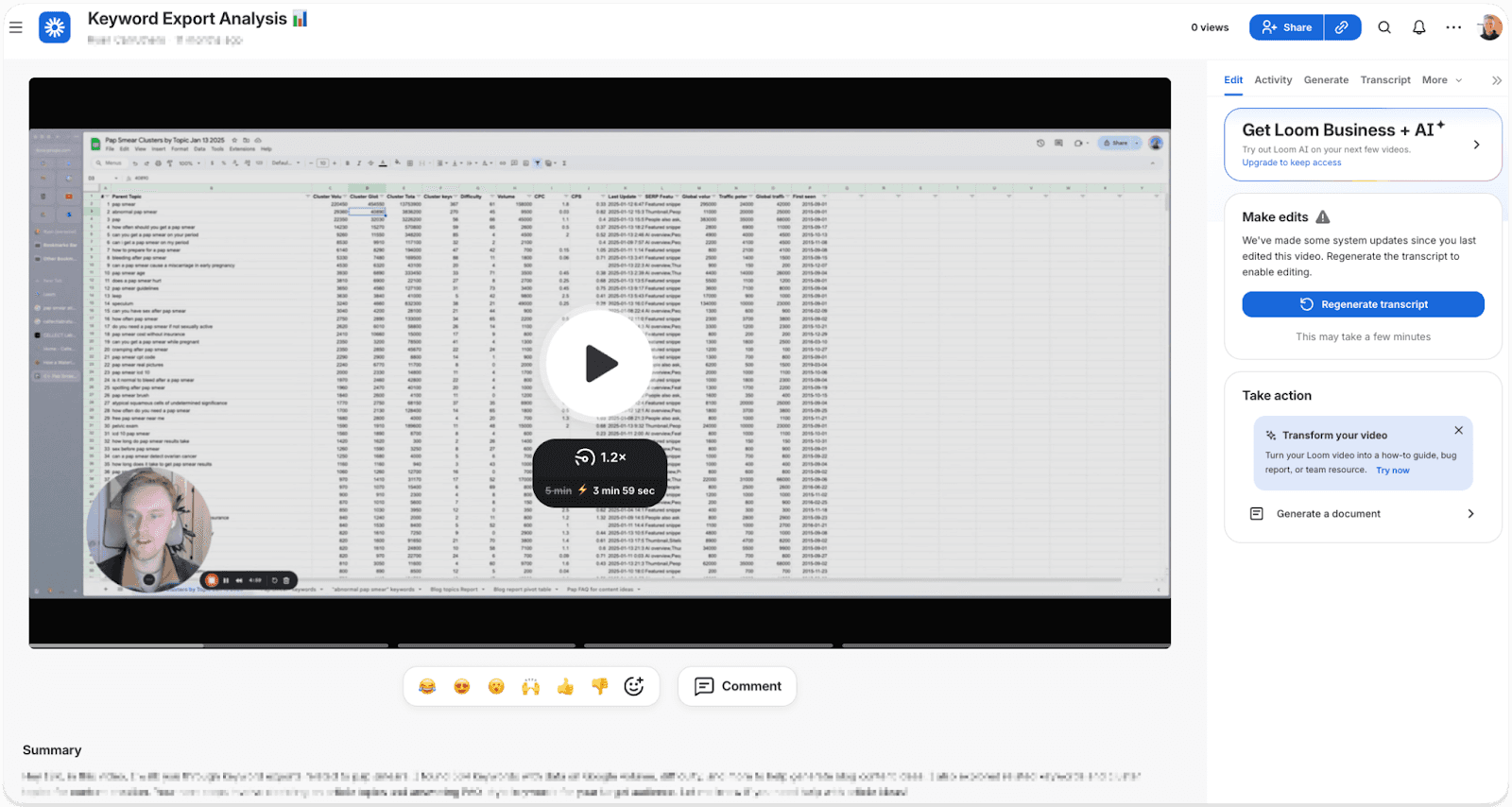
Loom's video viewer with playback speed

Loom is great for sharing quick screen recordings when you want to get feedback easily. 

Where are the drawbacks with Loom?

Loom’s positioning has changed since it was acquired by Atlassian in October 2023. Loom is now built for teams, with pricing-based plans. And they only allow annual billing, which forces you to go all in on the tool rather than test it out.

Although the Loom freemium plan offers a generous number of recordings, it restricts helpful features you’ll want. You can only share links to your recordings. You can’t download, upload, or edit them.
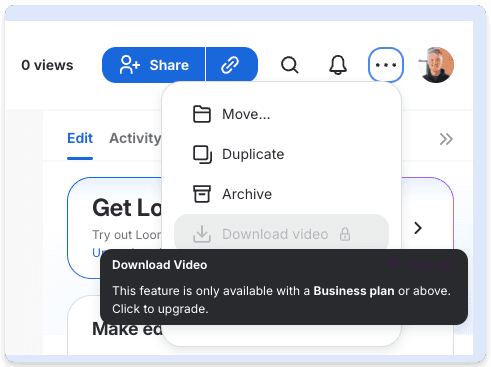
Loom's feature gate on downloading videos for freemium users

My biggest complaint with Loom: its flakiness in microphone syncing. I’ve had several occasions where I want to “record a quick Loom” for someone, so I put in my AirPods. It will ‘connect’, but I’ll record a whole video, share it, and hear back that there’s no audio. It’s really frustrating to go back and do it all again. There’s no feature that indicates if there’s an audio problem while I’m recording. And for a tool that positions itself as a time saver, that is a huge drag.

Who is Loom best for?

Loom is best for businesses with teams that want to communicate asynchronously. Remote teams working on projects that need multiple rounds of review and updates will love Loom for the time it saves them. It eliminates the need to schedule additional meetings. 

It’s best for anyone who frequently says “Let me show you what I mean” and would benefit from a fast video message instead of a long email.

3. Screen Studio
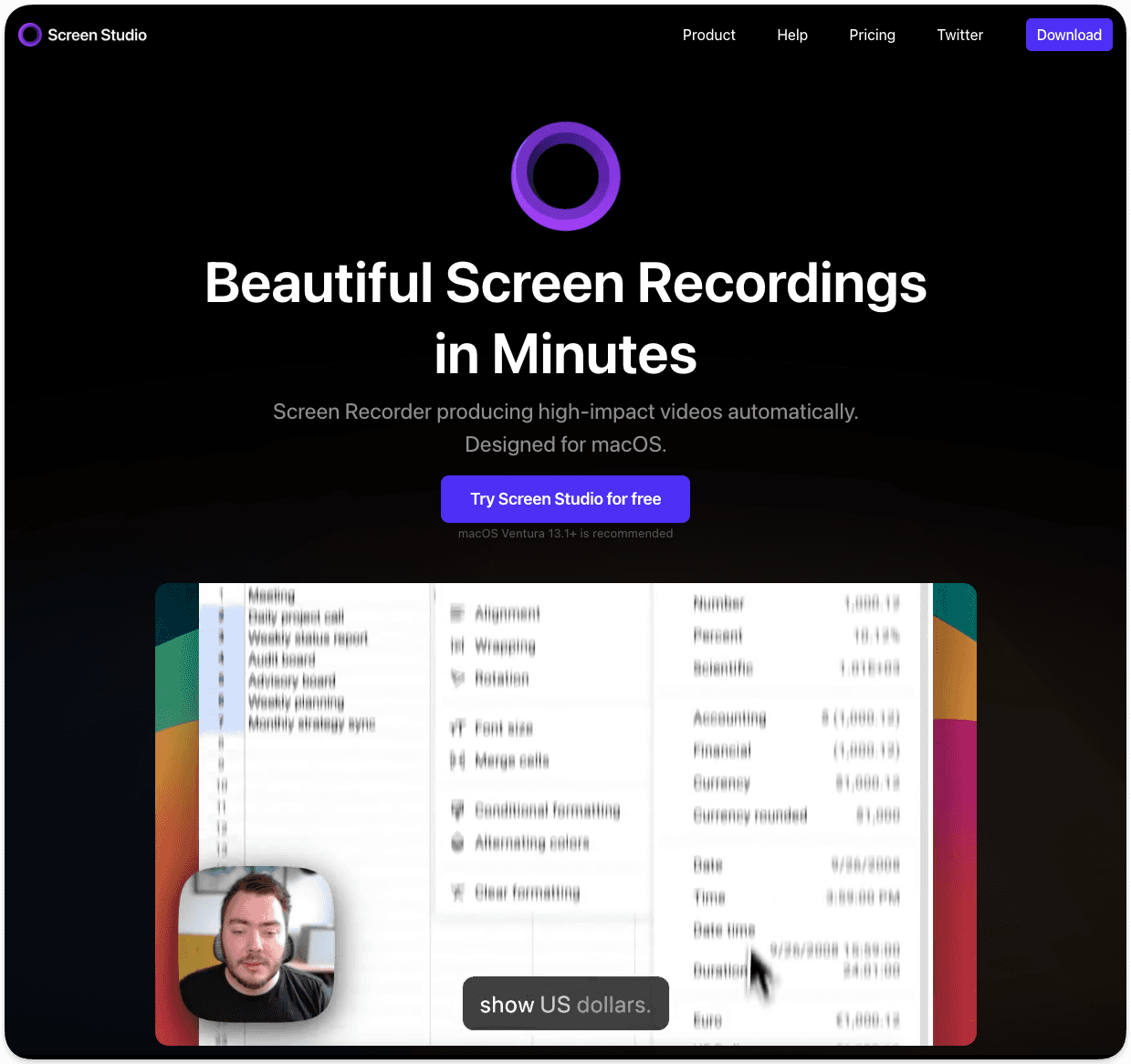
Screen Studio video recording editor for Mac

How much does Screen Studio cost?

ScreenStudio costs $29 per month if billed monthly, and $9 per month if billed annually. You can tell what they want you to do. Within that price, you can also add up to three of your personal Mac devices. This essentially means you can split the cost with two friends (who's got three Macs lying around?!).

ScreenStudio recently changed its pricing in late 2025. It used to offer a one-time payment of $229, which included one year of updates. It removed that option, moving completely to a subscription model.

What are Screen Studio’s best features?

ScreenStudio offers a very sharp and creative editing suite for screen recordings. It’s a Mac-only app, so there are no browser-based screen recordings. 

The most attractive feature that initially drew me to ScreenStudio was the zoom effects. After you're done recording, there’s an easy time stamp bar where you can drag the start and end points for the screen to zoom in on your cursor. For product demos, where you need to share where to click-click-click, this feature alone might make it worth the price. It certainly increases viewer engagement, making the videos instantly more professional.
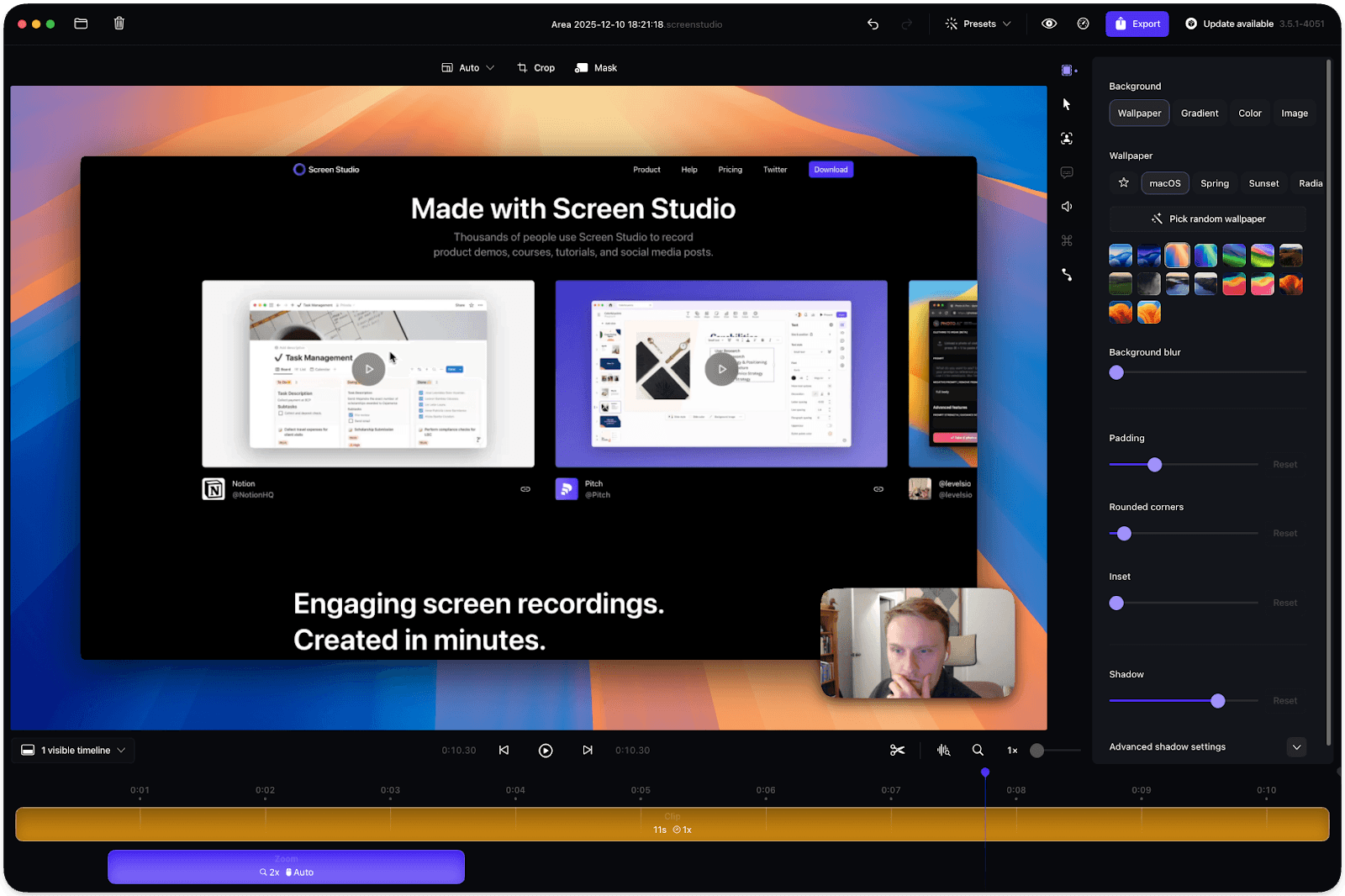
Screen Studio timeline video editor

The editor is also more beginner-friendly. It doesn’t look like something out of the Adobe suite, with features jammed into every edge of your screen. Instead, it’s a simple timeline editor with pop-up windows that expand if you want to go deep on a setting. For example, you can change a lot about the zoom effect, like the speed and the size of the cursor. These settings feel empowering without being overwhelming.

Where are the drawbacks of Screen Studio?

There’s no freemium plan for Screen Studio. You have to pay $30 to test it out. This is a big blocker that stopped me from testing it out for a long time. It was only after my manager got it and shared a license with me that I was able to dabble with it for a few micro demos I was working on. 

The pricing change drew sharp criticism online, with Redditors rejecting the CEO, Adam’s, reasons for dropping the plan altogether rather than lowering the price.
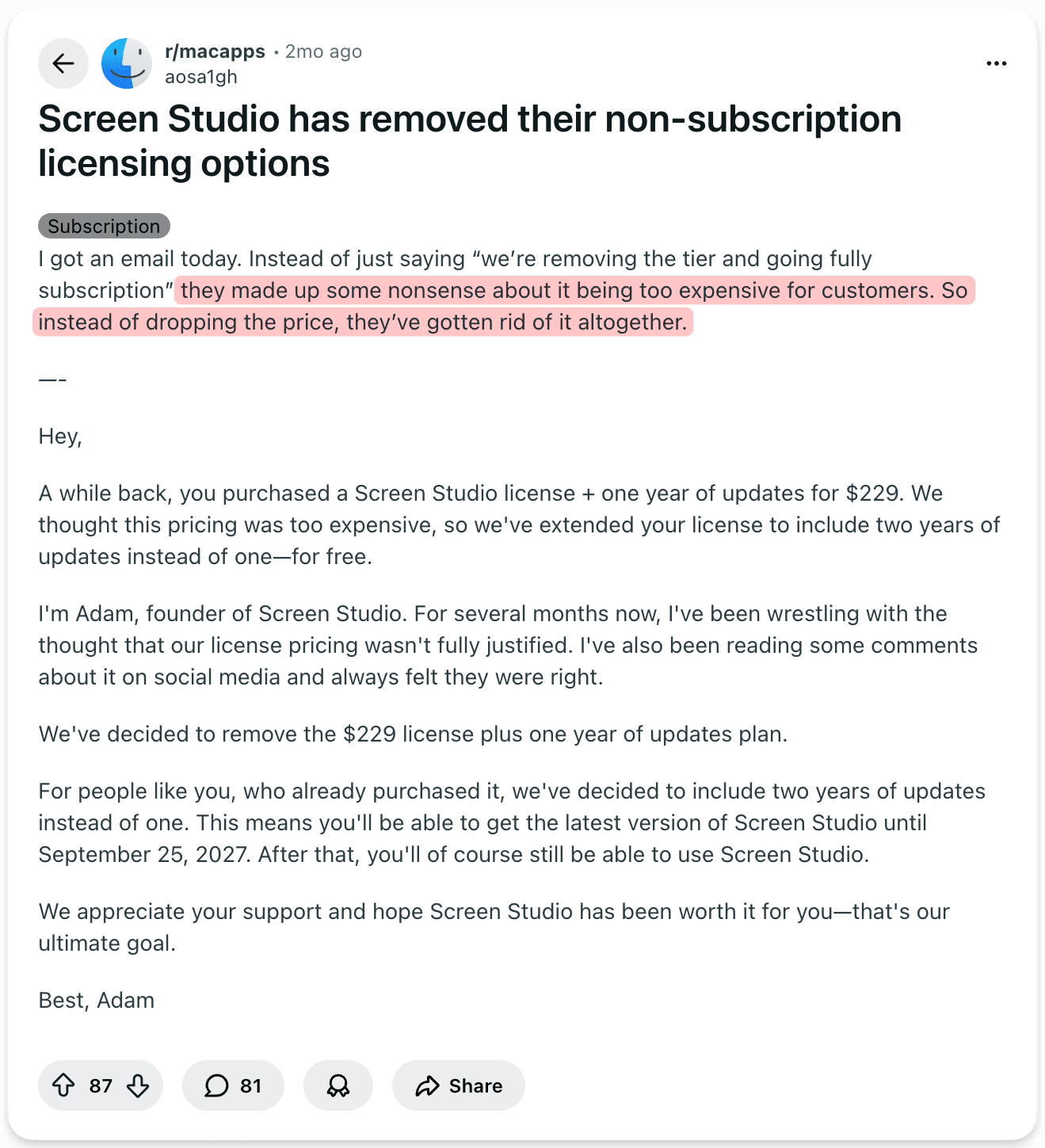
 Negative Reddit review of Screen Studio's pricing change

ScreenStudio only has a Mac app, which is a big con for me. I like quick communication, so booting up a screen recording from Chrome is my default behavior. To use Screen Studio, I need to be committed to making a higher-quality video that I’ll spend 30 minutes editing.

Another drawback of Screen Studio is that, while offering a smooth editing experience, you can’t combine multiple clips into a single project. So you need to get everything you want in a single recording or else.

I found the experience of sharing the licences across Macs clunky and counterintuitive. A simple process took me longer than I would have hoped, as I moved between the Mac app and their login.

Who is Screen Studio best for?

Screen Studio is best for course creators, YouTubers, social media gurus, and marketers who want attractive and engaging screen recordings. You’ll want Screen Studio when making product demos, how-to guides, and promo clips that don’t require mastering a complex editing tool.

4. CleanShot X
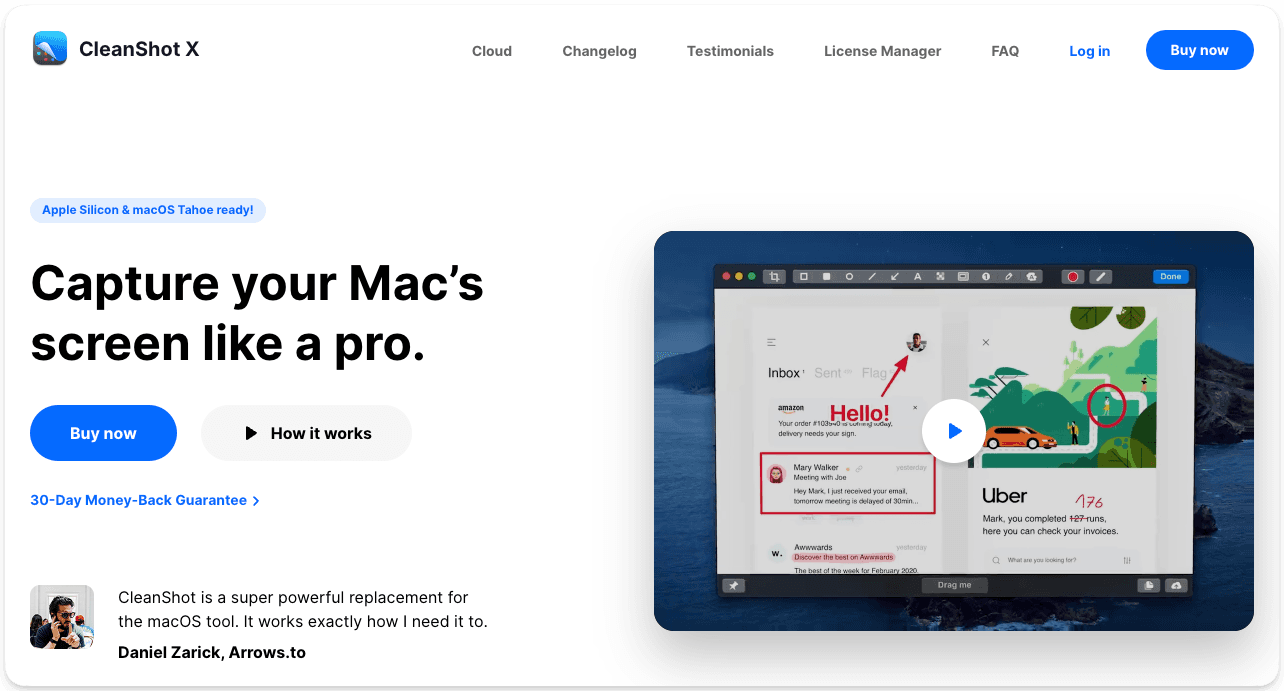
CleanShot X screen capture tool for Apple

How much does CleanShot cost?

You can purchase CleanShot X as a one-time lifetime purchase for $29, with discounts for students. 

If you’re on a team or want a subscription model, its App + Cloud Pro plan is $8 per user per month and billed annually. If you want to pay monthly, it’s $10 per user. This plan offers unlimited cloud storage and custom branding.

CleanShot doesn’t offer a free plan, but it does have a 30-day money-back guarantee.

What are CleanShot X’s best features?

CleanShot X’s best features are more around screenshots, rather than screen recordings. Their main draw for my team was the ability to mark up screenshots with arrows, text, and scrolling captures. You can also change the layout, adding rounded edges, backgrounds, and shadows, which make it easy to create high-quality screenshots (the images in this article were made using CleanShot X).
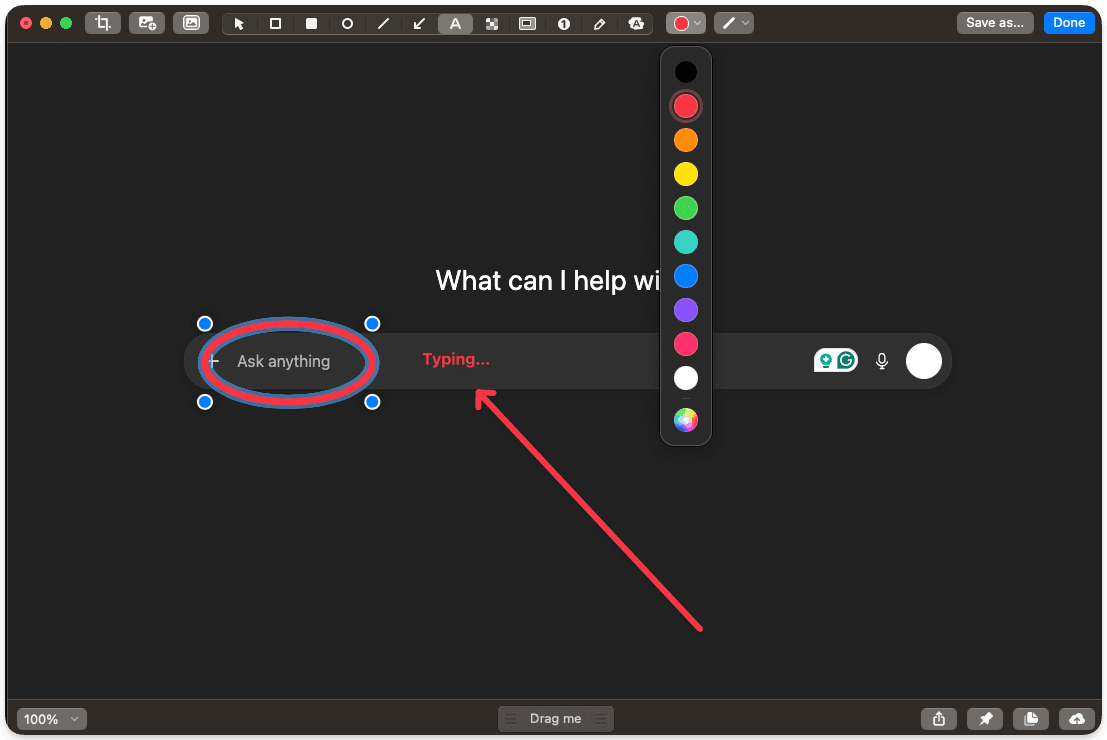
CleanShot X's screen capture tool editor

CleanShot offers screen recording features as well, with the option to record as a GIF, which is helpful if you’ve found yourself relying on Giphy.
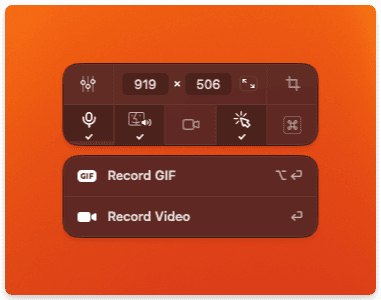
CleanShot X's screen recording function menu

A favorite Cleanshot feature of mine that doesn’t have anything to do with the screen capturing itself is the way it’s stored. When you take a screenshot, it automatically populates on the side of your screen. You can choose to edit it, save it, or drag and drop it wherever you want it. This makes it super seamless because it removes the need to download and upload screen captures. 

Cleanshot has a history function, so you can go back to screenshots and re-edit them if needed, which is incredibly helpful and something you won’t want to give up. 

Where are the CleanShot X drawbacks?

The main drawback of CleanShot X is that it’s not a video recorder first. It’s a screenshot tool. You can record your screen, of course, but the editing capabilities are minimal. Editing is limited to trimming the start and end points.
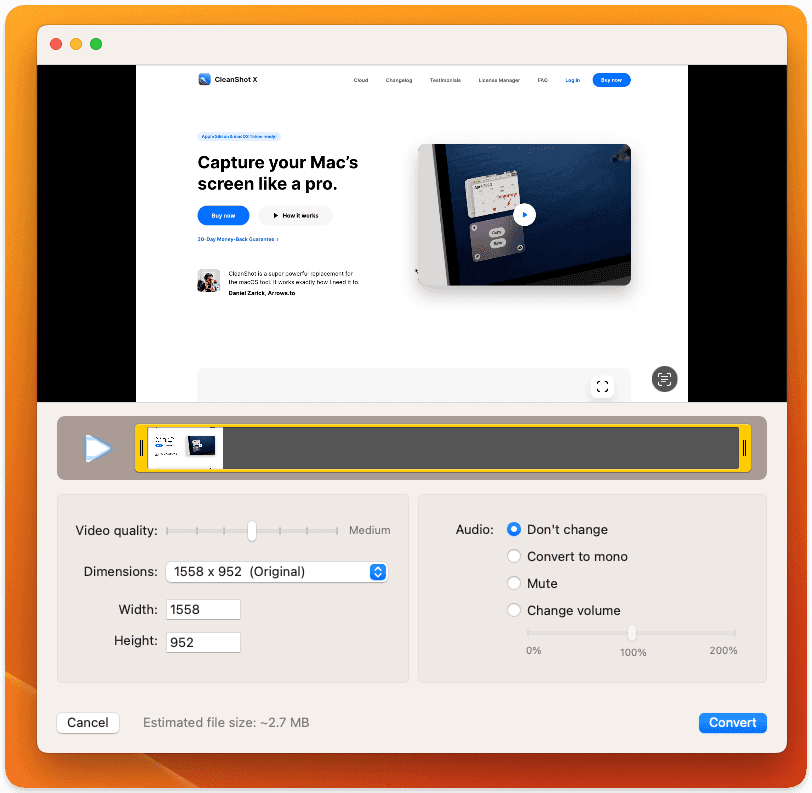
CleanShot X's trimming editor

Who is CleanShot X best for?

If you’re looking for a quick and seamless screen capture tool so you can share screenshots or short recordings with colleagues, CleanShot X is a great tool for Mac users. It's often praised for how intuitive and user-friendly it is. However, if you won’t find CleanShot X to be a screen recorder that offers advanced editing capabilities. 

CleanShot X is best for people who value productivity and sending clean screenshots that are visually appealing and want to add an extra layer of polish to everyday communications. 

5. Supercut
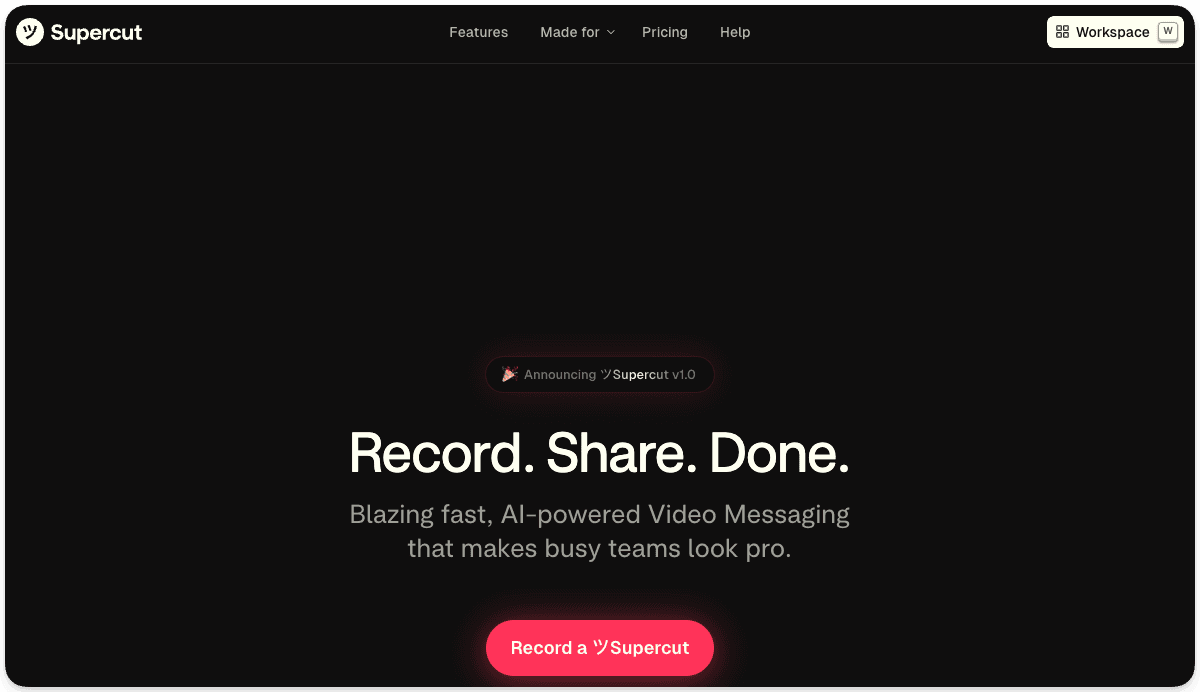
Supercut screen recorder for Mac

How much does Supercut cost?

Supercut is an AI-first subscription-based screen recorder that offers a free trial, but no freemium plan. Interestingly, the website points to Loom’s pricing page if from their Free tab on its own pricing page. I’ve never seen this before, and it tells me they’re aware of what kind of market they’re in. 

For their paid plans, the Pro plan is $15 per user per month. It includes AI features like automatic edits, chapters, and an AI chatbot that will answer questions based on the transcript. 

Supercut also offers an enterprise plan, but you’ll have to connect with their sales team. 

What are Supercut’s best features?

Supercut is a clear alternative to Loom, but positions itself as a premium alternative with its AI features, which make fast video communications cleaner and more efficient. 

Supercut is a native macOS and Windows app built for 4K recordings without lag, so the videos are really crisp. However, they are large files if you download them. 

Another feature that differentiates Supercut from Loom is the layout editing. You can change the background, camera position, and theme. It’s as if you took the screenshot capabilities from CleanShot X and added them to a video editor. That’s Supercut. And I like it. 
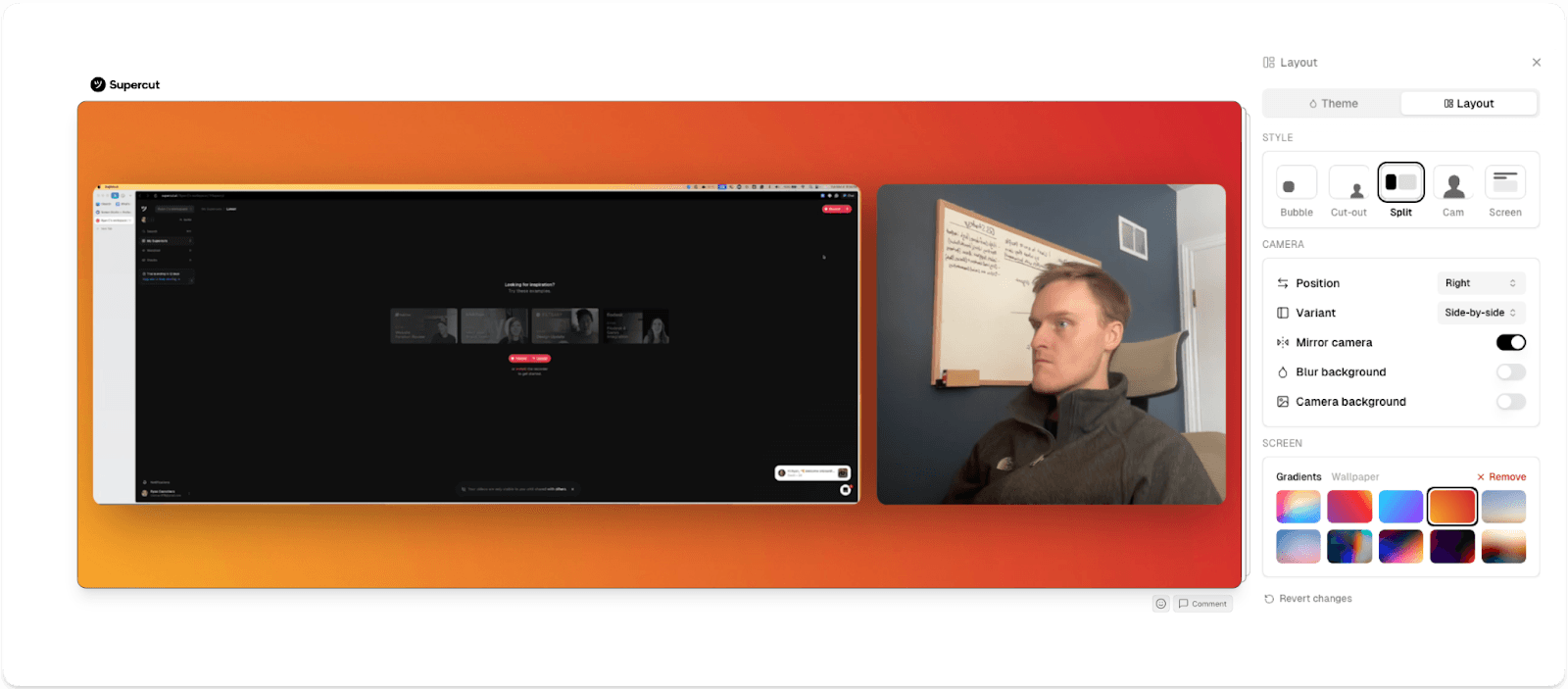
Supercut's video layout editor

If you’ve used Loom, you know it tells you how many views your video has. Supercut goes further, offering detailed analytics on visits, plays, engagement, and click-throughs. It’s similar to YouTube.
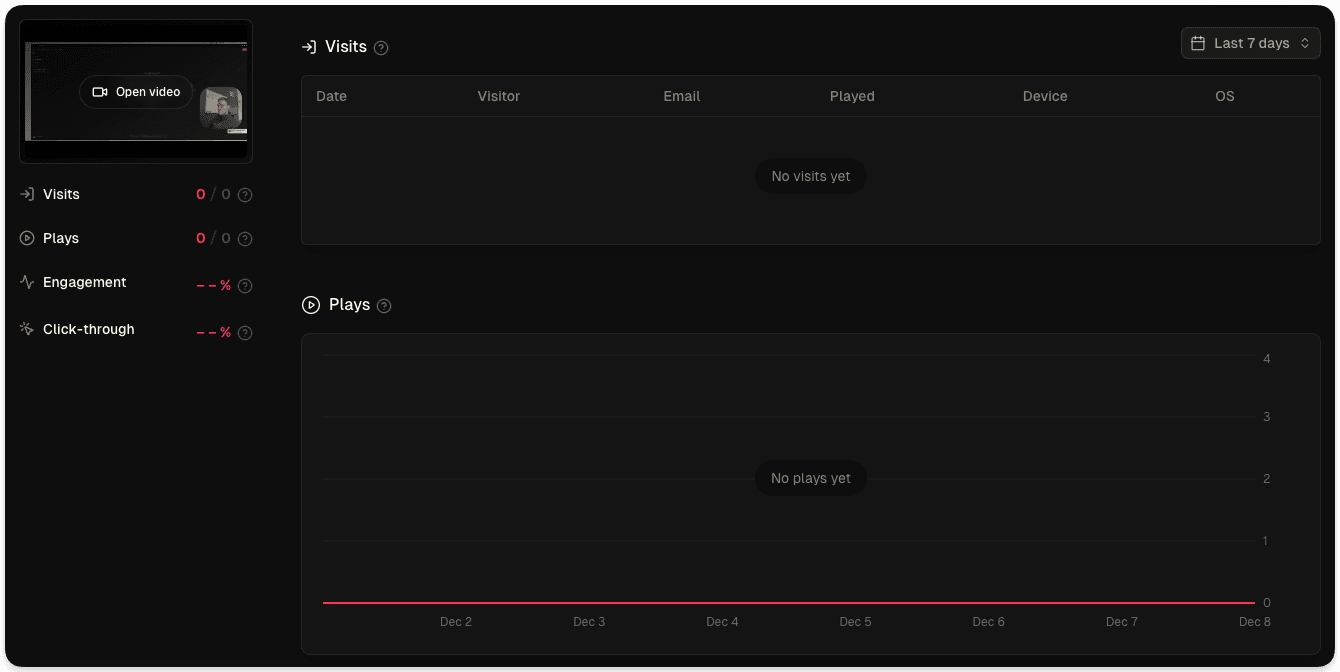
Supercut's video analytics

Where are the drawbacks of Supercut?

The drawbacks to Supercut are that it’s still evolving. It has a lot of nifty AI features, but as a competitive alternative to Loom, I’m not sure how much value they add, unfortunately. It’s a great tool, don’t get me wrong. I love the 4K video quality and slick UX for recording and editing. 

Supercut sits slightly above Loom in terms of advanced features, but falls below Screen Studio or Tella, which make advanced editing more accessible. It’s also only an app, not a browser-based recorder, so that makes it harder to access in the flow of work. If you want to change my screen recording habits, I feel a Chrome extension is non-negotiable for ease of access.

Who is Supercut best for?

Supercut is still evolving, but it is best for remote teams, particularly sales support, who want to quickly record and send external-facing screen recordings without having to spend a lot of time editing them. 

If you’re looking for a professional video with minimal editing, their AI features will do most of the work for you. All you have to do is record and send. 

6. Camtasia
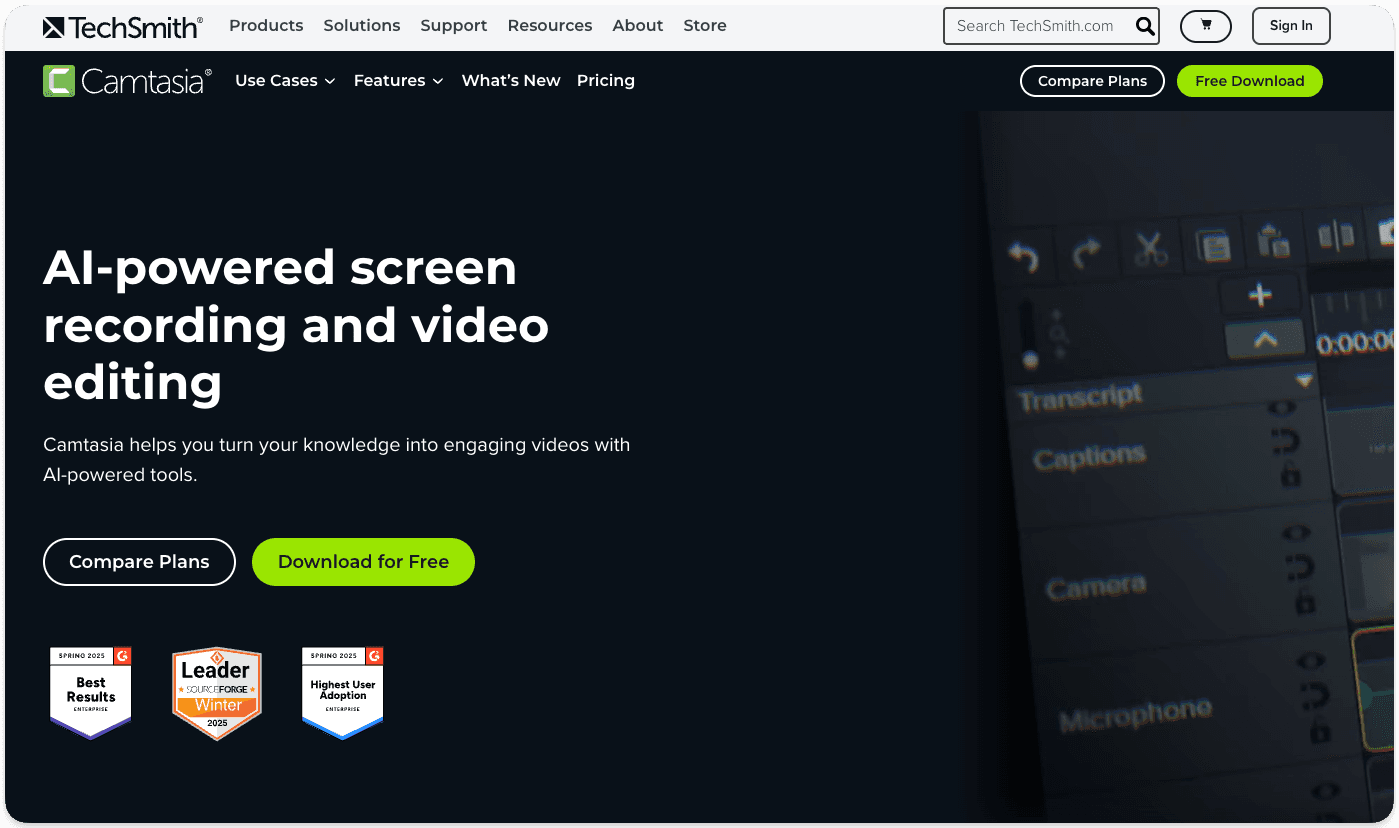
Camtasia's screen recording software

How much does Camtasia cost?

Camtasia (part of TechSmith’s suite of products) offers four tiers for individuals and more for teams and educators:

  • Starter: ~$40 per year

  • Essentials: ~$180 per year

  • Create: ~$245 per year

  • Pro: ~$600 per year

  • Business: ~$200 per year

  • Educators: ~$160 per user per year

  • Students: ~$175 per year

Included in all Camtasia plans is 4K and 60 fps recordings, AI features to redact or edit backgrounds and noise, and video editing tools. 

There’s no free plan for Camtasia. Only a trial with a watermark to try before you buy.

What are Camtasia’s best features?

Camtasia is a heavyweight editing tool. After you record your screen and camera, you’ll then jump into a full-fledged editor. You can add annotations, transitions, animations, cursor effects, quizzes, and even interactive hotspots to your videos, which is unique and something I haven’t seen before. 

Camtasia has a rich library of shapes, arrows, and motion graphics that help make the video more engaging. But you need to customize them as you want, which can take some time. However, these elements are helpful for tutorial and training videos. Camtasia also supports multi-track audio and video, meaning you can import other video files or add audio, such as overlay music. 

In all, Camtasia is very similar to a video editing program.

Where are the drawbacks of Camtasia?

Camtasia has been around since 2002, and unfortunately, it shows when compared to newer tools like Tella, SuperCut, or ScreenStudio. It’s also one of the most expensive options in our list. 

Camtasia can be overkill if you primarily want to communicate with colleagues efficiently and lightly edit videos for a more professional look. Camtasia’s interface is packed with features, reminding me of Adobe Premiere Pro or After Effects. If you’re not familiar with these kinds of video editing platforms, it’s overwhelming at first. These features can slow down its functionality, also making project files large and complex, unlike cloud-based alternatives.

One other drawback of Camtasia is that you can’t share videos with a link. You save your recording as a file and share it through other means. This slows down the quick communication that other tools offer. 

If you use Camtasia, you might find more value from Adobe’s suite which offers comparable pricing.

Who is Camtasia best for?

Camtasia is best for corporate trainers and e-learning creators who need a long-form video editor. If you’re creating instructional videos for a corporate or educational context, and you want an alternative to Adobe’s suite, you’ll find value in Camtasia. 

If you just need a quick communication tool, Camtasia is too hefty. Stick to simpler, cheaper tools in this case.

7. ScreenFlow
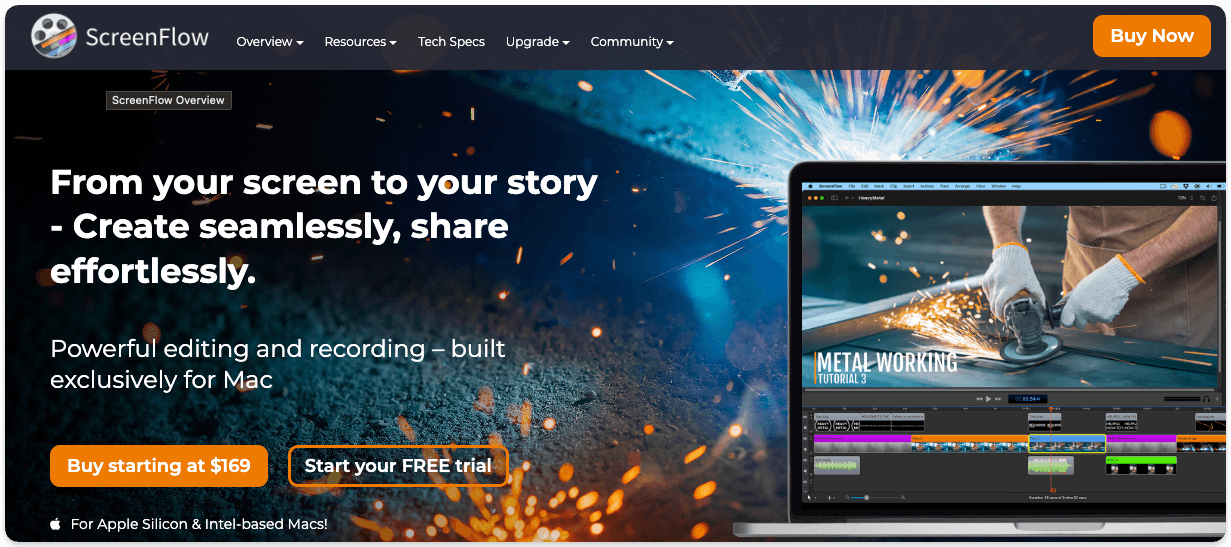
ScreenFlow's screen recorder

How much does ScreenFlow cost?

ScreenFlow offers three tiers. Its basic tier is $169. If you want to add the media stock library, it’s $229. And if you want the stock footage along with premium support, it’s $259. All of these are one-time purchases with no monthly fees outside of upgrades.  

ScreenFlow does offer a demo when you download the Mac app. But it limits the editing functionality and includes a watermark on your exports.

What are ScreenFlow’s best features?

ScreenStudio is similar to Camtasia in that it resembles Adobe’s Creative Suite, but a step below. It offers much more than your basic screen recorders — after you complete your recording, you’ll see a multi-track timeline editor, so you can overlay different clips, not unlike classic video editors.
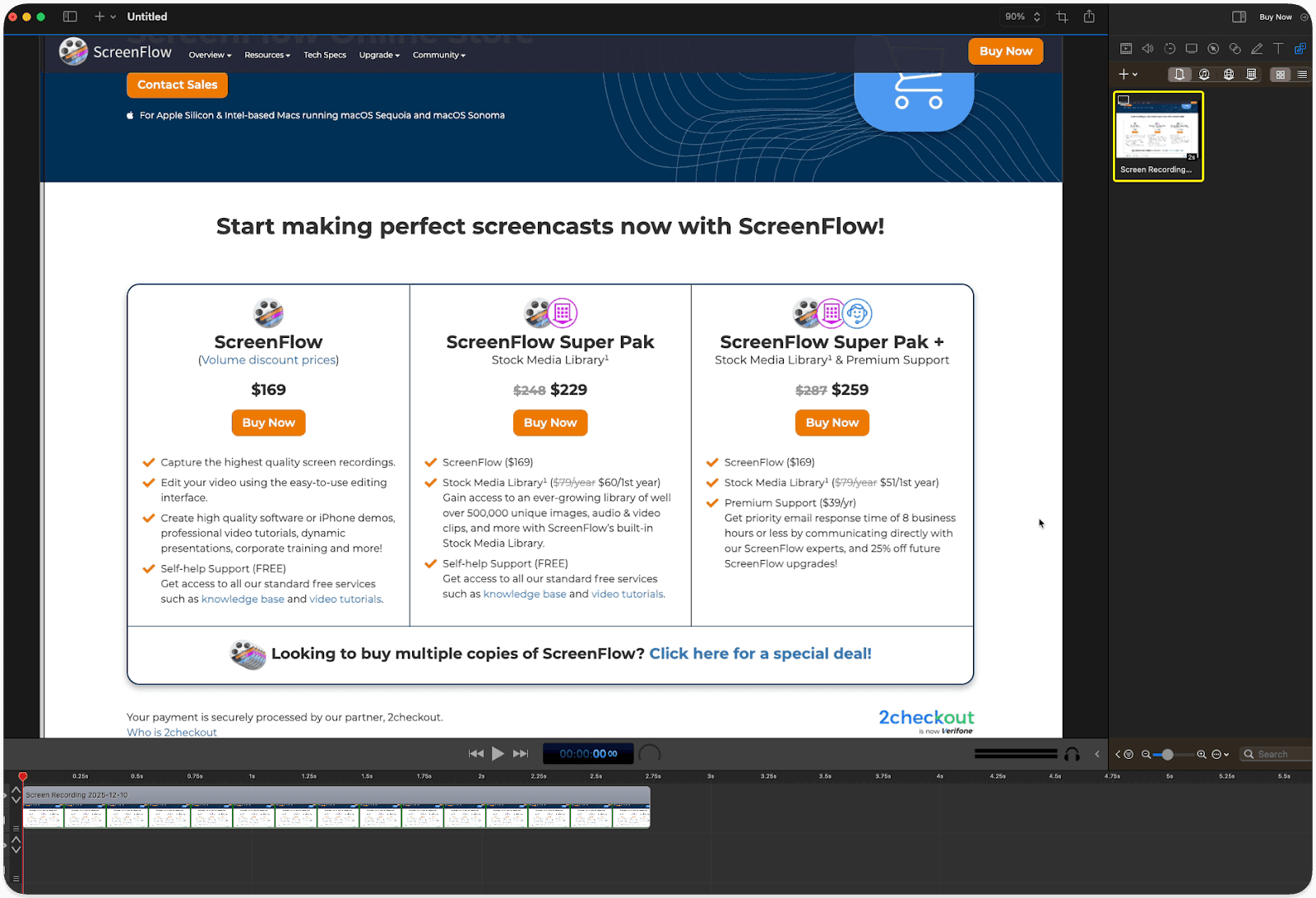
ScreenFlow's video editor

You can also add text, annotations, transitions, animations, and the stock footage to Screenflow if you choose. Just as you can add multiple clips, you can also add audio files if you want background music for whatever reason. 

If you’re recording long-form content like a course or tutorial, ScreenFlow has the ability to stitch everything together. That’s one of its main benefits: its ability to handle lengthy recordings

Where are the drawbacks of ScreenFlow?

ScreenFlow isn’t a “record and share” app. It’s a video editor, but not a complete one. 

I have to say it: this tool is old school. Its interface is stuck in the early 2000s. Not to be a stickler, but the details matter. Look at the timeline editor. The font used for the clock has a metallic gradient common with early Windows software. I’m not sure what differentiates this software from others besides the media library and its reputation for handling hour-long recordings well. 
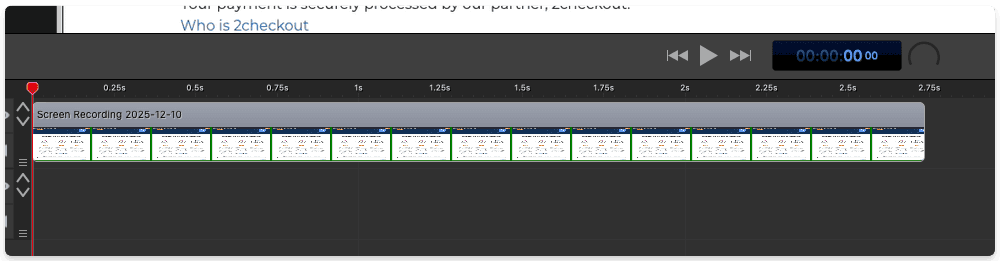
ScreenFlow's timeline editor

I think that newer Mac screen recorders have long surpassed the UX of ScreenFlow, and they don’t have the versatility of full video editing software. So they’re stuck in this no-man’s land of old software.

Who is ScreenFlow best for?

I struggle to think of anyone I’d recommend this tool to outside of corporate teams that haven’t learned about ScreenStudio, Tella, or other more modern screen recorders. 

If you need to record a long course with intros and outros, annotations, and multiple clips, ScreenFlow will do the job, but there are many alternatives on the market that will give you much more value for the cost of ScreenFlow’s $169 base price. 

8. Movavi
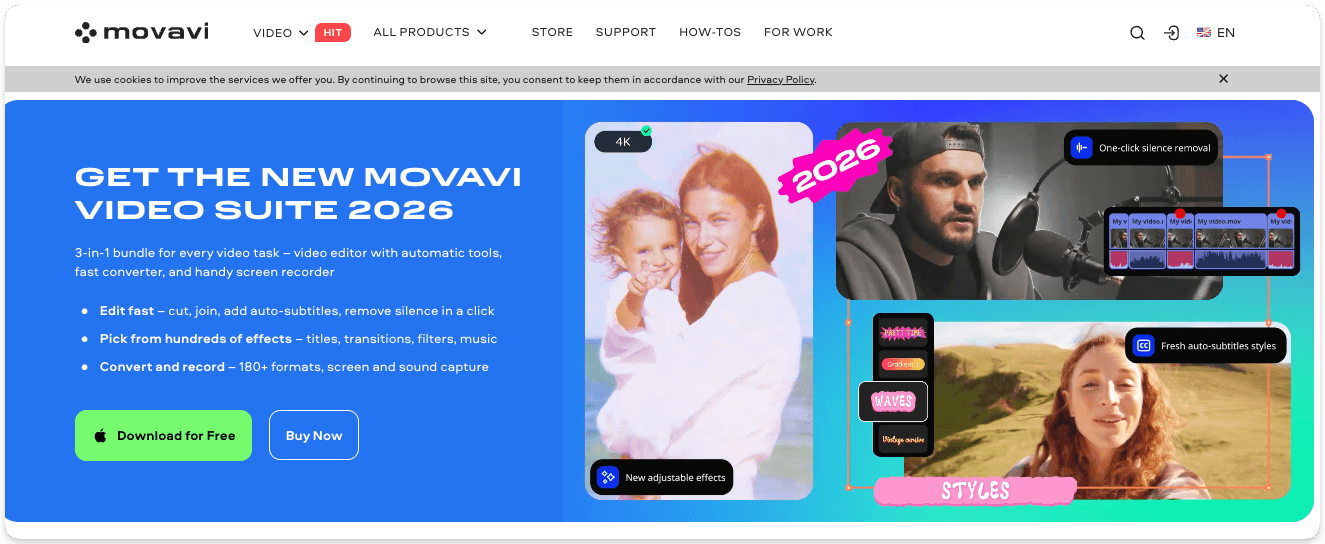
Movavi video editing suite

How much does Movavi cost?

Movavi’s screen recorder has three plan types. There’s a one-month video suite subscription for around $30 with an optional add-on to the video effects library for ~$37/month. You can get a volume discount if you purchase a full-year licence for ~$230, but you may find an offer on their pricing page to drop the price up to 60%.

If you want to add the video suite and photo editor to Movavi, you can do a one-year license or a lifetime purchase. A single year costs ~$210, and a lifetime purchase costs ~$320. However, the pricing page often includes discounts.

Movavi offers a free trial that limits the features and includes a watermark on exports.
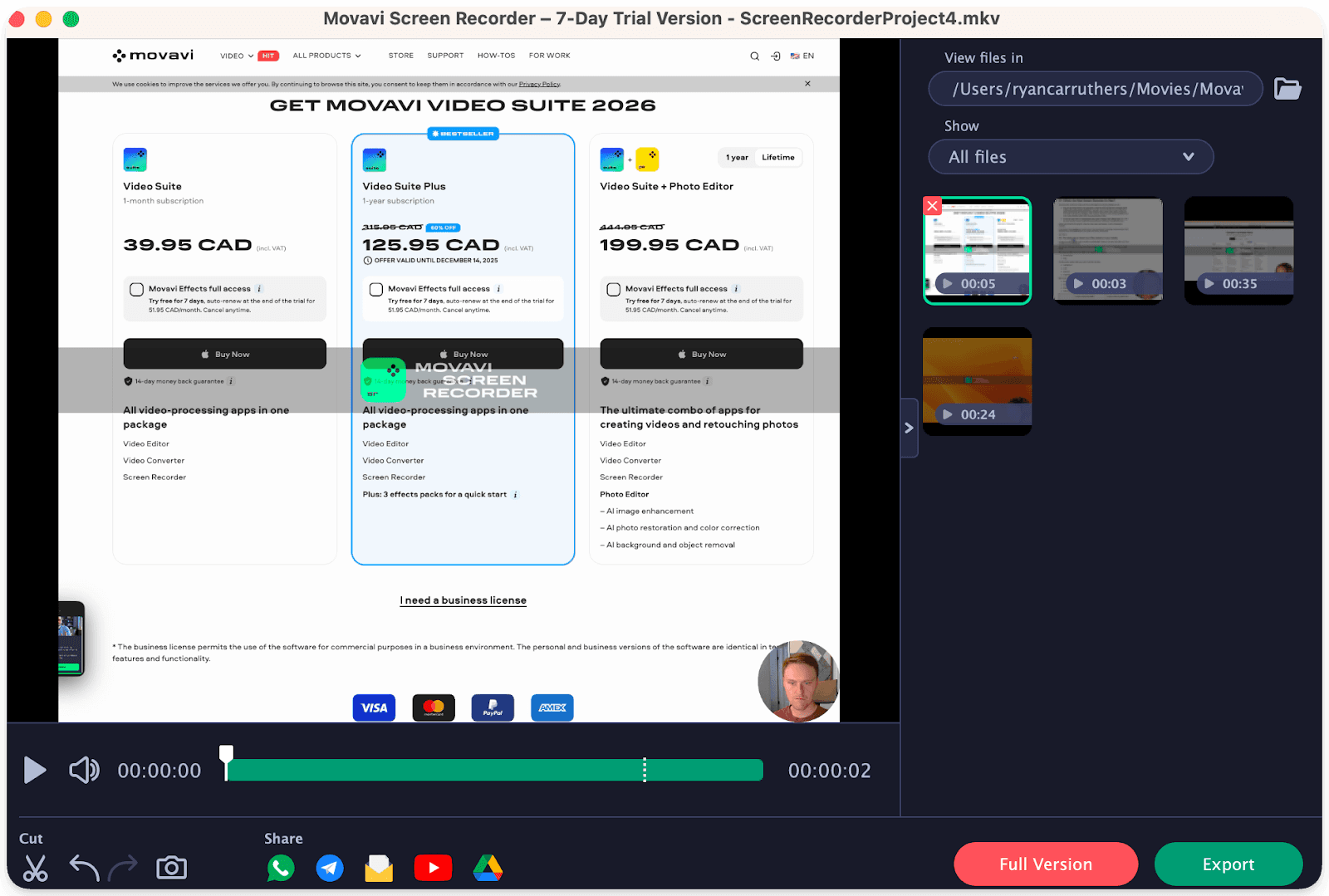
Movavi's video free trial video editor

What are Movavi’s best features?

Movavi is a beginner-friendly video editor with a straightforward interface that you can learn quickly. The UX isn’t as seamless as Tella or ScreenStudio’s editors, but it offers more than bells and whistles. In addition to all the basic needs, it also offers AI tools that remove the background on your webcam  and reduce noise. 

You can also schedule your recordings in advance (which could be helpful if you want to stream a webinar) and upload directly to YouTube or your Google Drive. Movavi is rich with features and has a lot of add-ons to extend the type of screen recordings you can create. 

Where are the drawbacks of Movavi?

Here’s the thing: in writing this article, I’m obviously biased toward the tools I’ve subscribed to. I tested the others during trials. Movavi is the only screen recorder tool I’ve tested that aggressively interrupts your experience with pop-ups and CTAs to subscribe. 

Every time you start a recording with Movavi, it hits you with a CTA to upgrade, which slows down the ease of use because now I’m confused on what to click. 
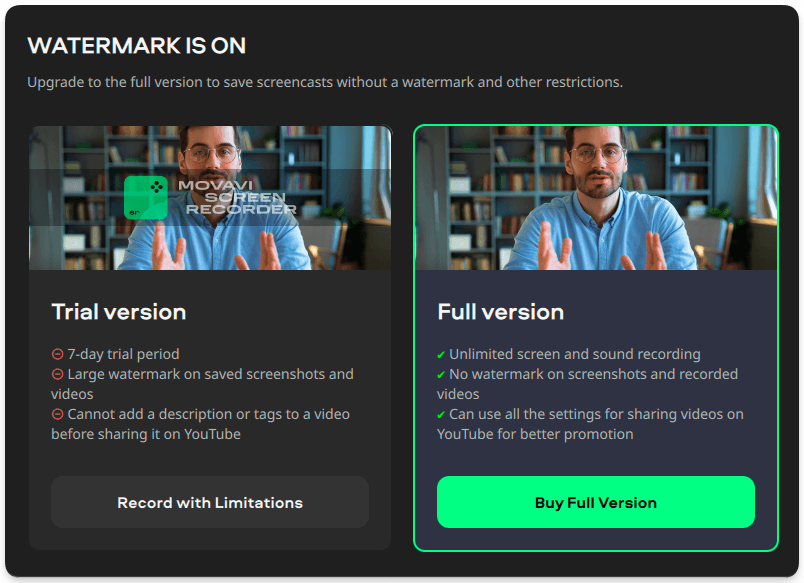
Movavi's free trial popup CTA

When I used the Movavi editor, exporting would interrupt me with another CTA, reminding me to pay up. Again, I’m just trying to export the file and now I need to decipher that the hidden button, “continue” is how I proceed. It was honestly difficult to trial the tool without being cut off mid-task. That experience really put me off.
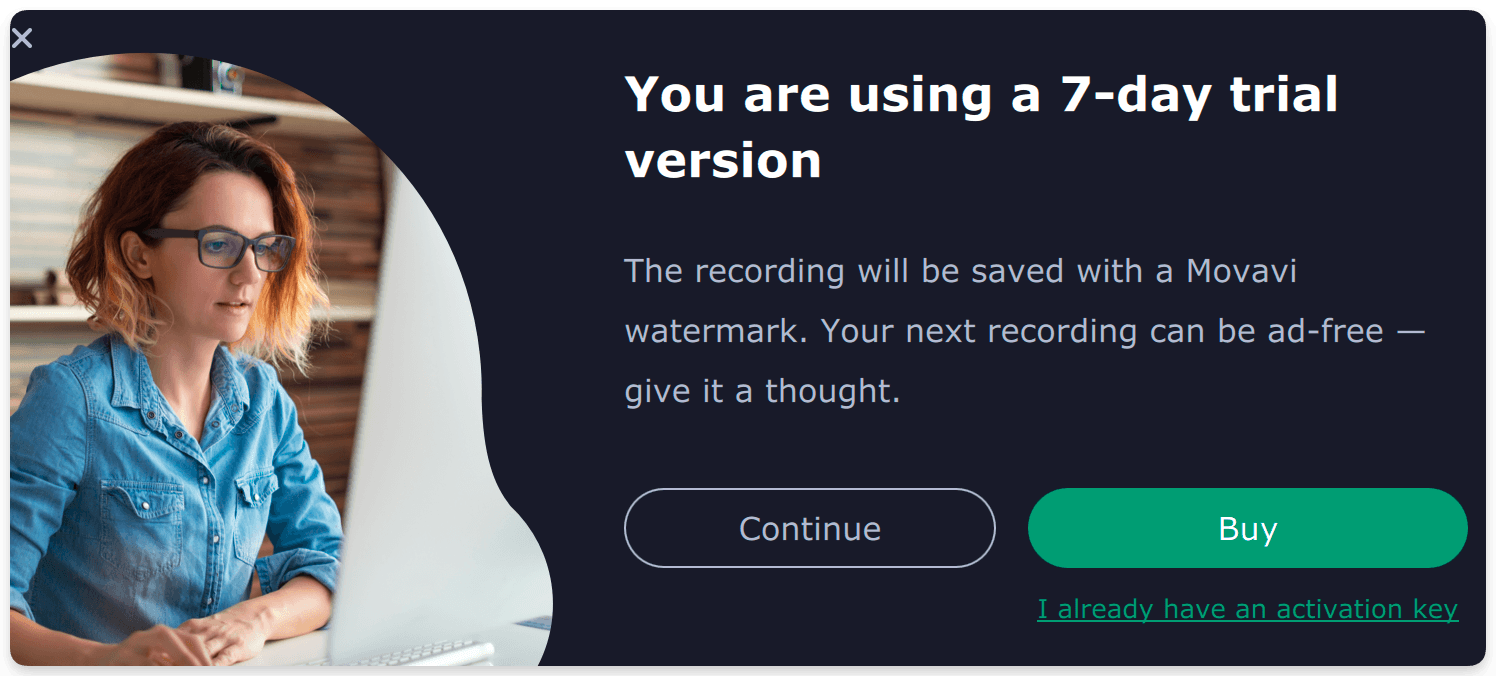
Movavi's free trial popup CTA

In addition, Movavi offers a suite of additional tools, but they’re all gated, so the interface itself is quite basic. You can essentially only trim your video and export it, which doesn’t really feel like a trial experience. 

I believe Movavi offers a lot of features, but it’s not generous at all in allowing people to try before they buy. 

Who is Movavi best for?

Movavi is best for teachers or students who want a reliable recording with editing lite capabilities. It’s well-suited for creating lessons or how-to instructional videos for software because you can add annotations and easily share them.

Movavi targets those who want more than what free tools provide, but who also don’t need the full complexity of enterprise software. Advanced video editors or large-scale production folks might outgrow Movavi, but it’s a step up from other tools like ScreenFlow.

9. OBS (Open Broadcaster Software)
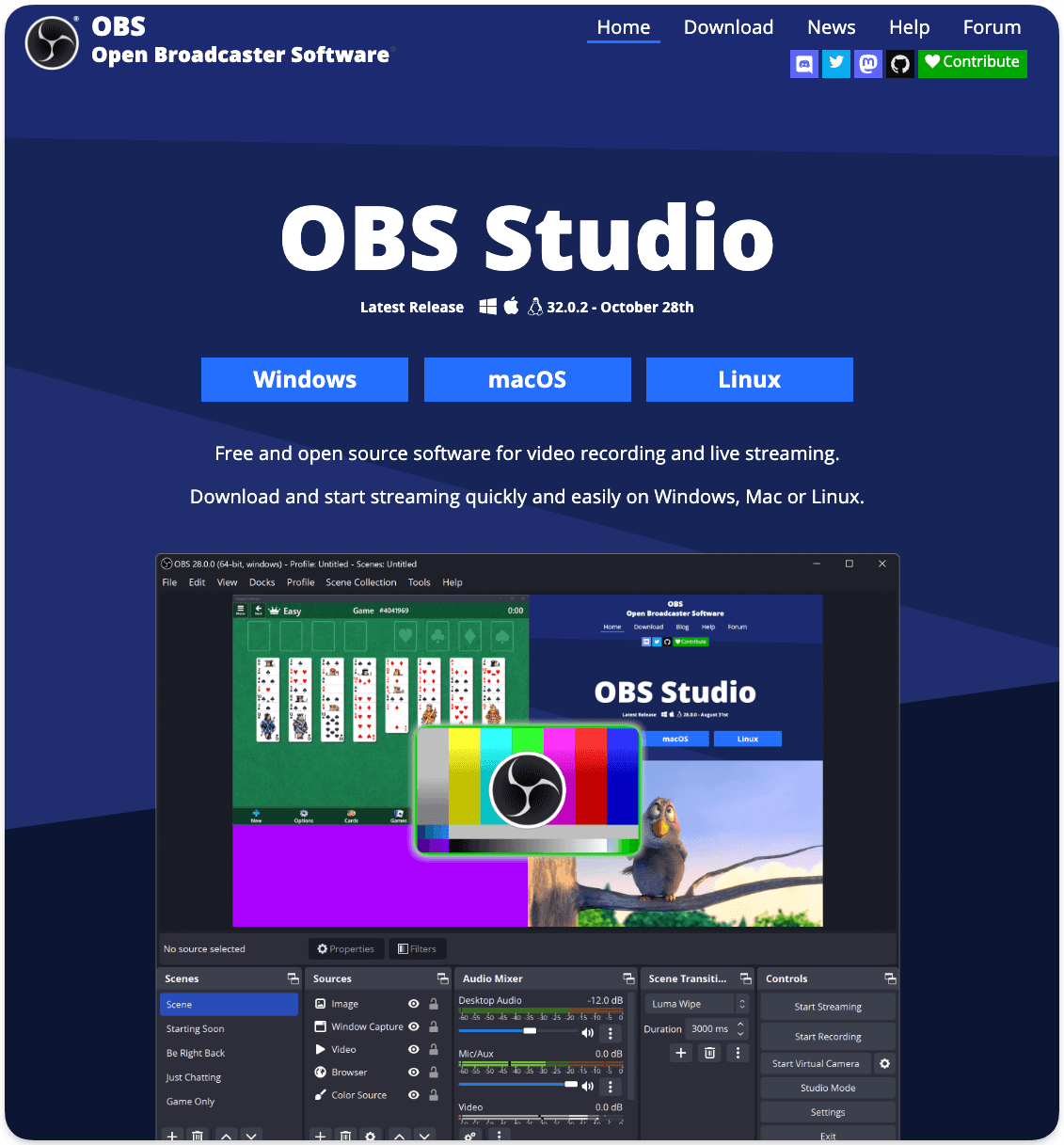
OBS screen recording studio

How much does OBS cost?

OBS (Open Broadcaster Software) is unique among screen recorders because it’s open source. It costs nothing to download or use on your Mac. It’s a community-developed screen recorder, so you won’t be hit with any upsells after you download. 

What are OBS’s best features?

OBS is the go-to streaming tool for advanced users who want to share their screen live, likely gamers. If you need to compose a scene with multiple screens, you import in the video file and arrange it how you want it. You can add your webcam and screen in different layouts, but also images or other windows at once.
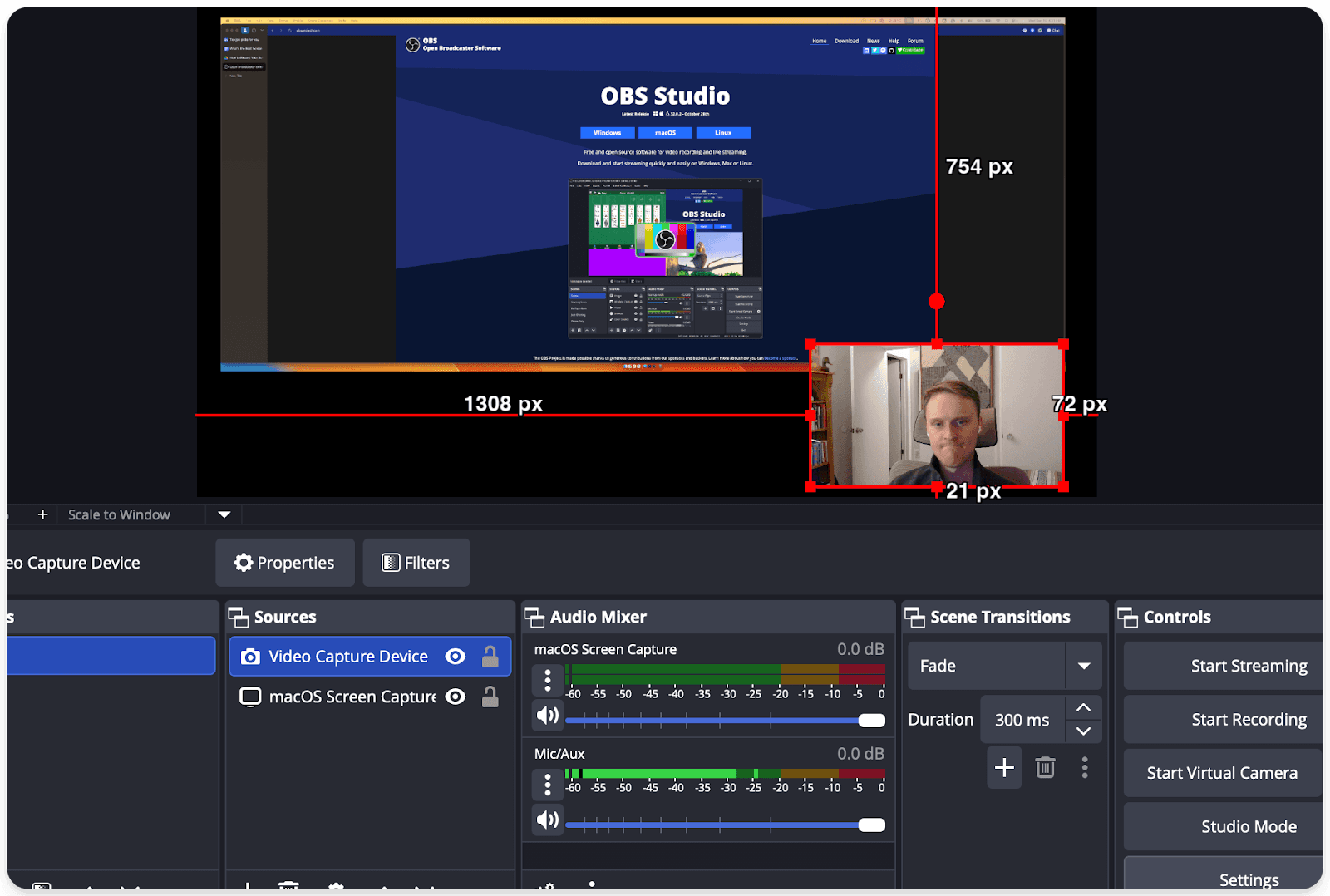
OBS screen recording editor

As an open source tool, there are plugins and integrations that can extend what’s possible. Common ones are virtual greenscreens or audio mixers. You can even connect to Zoom, which I can imagine streamers could find useful.

In short, OBS is a professional tool that gives you a ton of value, all for free. It offers near-infinite configurability for those who need it.

Where are the drawbacks of OBS?

I found OBS really intimidating. Going from Tella and Loom to OBS felt like a culture shock. It’s not beginner-friendly, and I needed to understand how all the settings worked before I could configure the interface correctly. 

It’s important to note (because I didn’t realize this at first) OBS is not a video editor. It’s for recording/streaming only, so if you need to cut or polish footage, you’ll use another program. 

There’s no built-in sharing mechanism in OBS. You get a raw video file or a live stream output. Finally, on macOS specifically, capturing your system’s audio requires a third-party plugin, which adds to setup complexity if you want that.

Who is OBS best for?

The level of control that OBS provides is great for streamers and YouTubers who want to set everything up their way before going live.

I’d be curious to know how common OBS is among Twitch streamers. I bet it’s common as an industry standard.

Developers of open-source tutorials or tech webinars might use OBS to incorporate various media. It’s great for anyone who needs to produce a very custom video layout or wants to leverage the highest quality settings. However, for someone like me, needing to quickly send a screencast, OBS is definitely overkill.

10. QuickTime Player
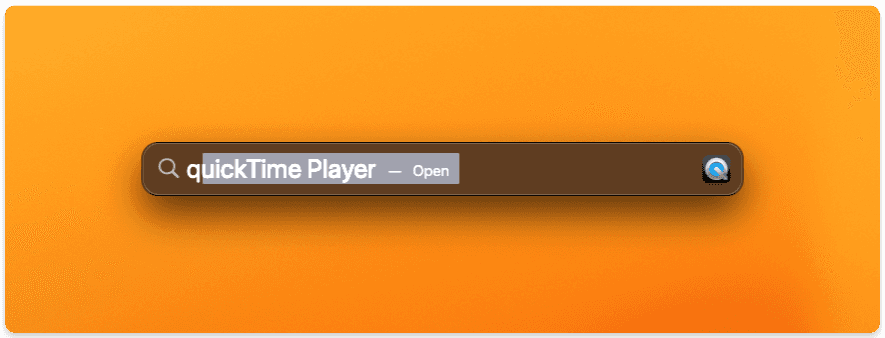
Openning QuickTime Player from Mac's launcher

How much does QuickTime cost?

QuickTime is free as a default app on your Mac.

What are QuickTime’s best features?

The main draw of QuickTime is that it’s built into your Mac with the basic needs of a screen recorder. It can capture your screen and do simple video/audio recordings. 
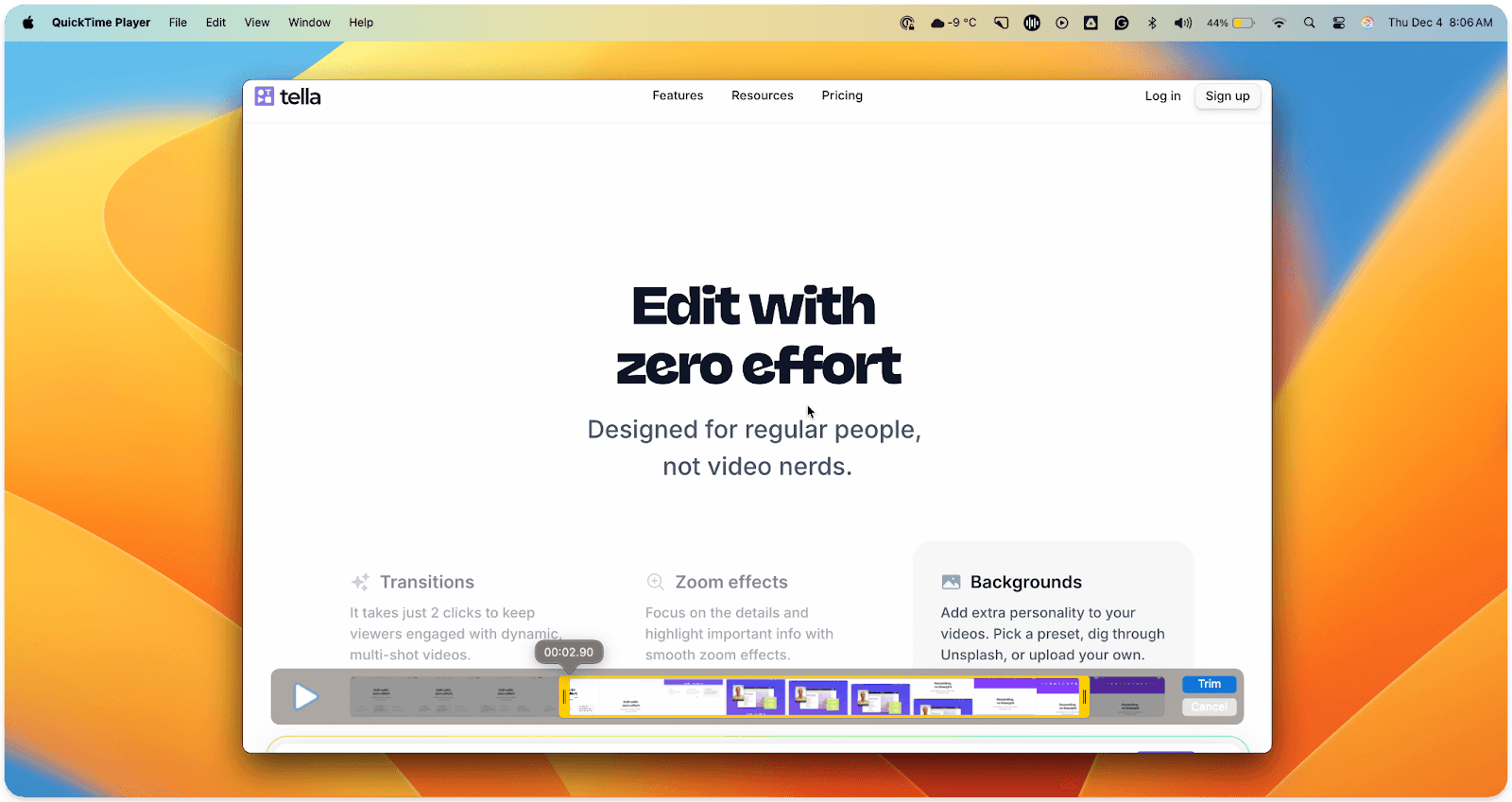
QuickTime Player's triming editor

QuickTime includes basic trimming in the video editor and will save as a MOV/MP4 file. It’s an out-of-the-box tool, so the main draw is its reliability and zero setup. So it’s lightweight if you’re not looking for many features in your video editing or sharing. 

Where are the drawbacks of QuickTime?

QuickTime offers no advanced tools, so you can’t annotate or highlight the screen while recording or while editing. You also can’t combine clips. 

When you are recording in QuickTime, you’ll have to choose between your webcam and your screen. You can’t do both at the same time. Likewise, it only records microphone audio and not your system’s audio.

If you want to share a video from QuickTime, you’ll have to first save it to your system and share it manually from there. There’s no built-in link sharing. Its feature set is “what you see is what you get.” 

Who is QuickTime best for?

QuickTime is best for basic Mac users who will occasionally need to take a screenshot or record their screen. Instructors or developers who need a quick reference from a screen will find QuickTime sufficient. However, if you find yourself recording your screen a lot, you’ll quickly outgrow it.

Try Tella, the best Mac screen recorder, for free

We covered a wide spectrum of Mac screen recorders in this article, ranging from basic screen capture tools to full-on video editors. If you want a screen recording tool for your Mac that’s not a clunky video editor, but offers advanced features that look polished without the pain of learning a full editor, Tella hits the sweet spot. 

Record in your browser or Mac app, switch layouts, add backgrounds, and auto‑clean your audio and filler words. When your video is done, Tella generates a link to share with viewer analytics. You can also brand the link to a custom domain.

Tella is best for solo creators because:

  • It’s fast, with an intuitive design that will make editing feel good, not a slog. 

  • There are AI helpers for captions, silence removal, and smart cuts to clean up your recording automatically.

  • You can record in the browser or Mac app.

  • There’s a seven-day free trial.

Make your next demo, tutorial, or pitch look like it was edited by a professional editor, without spending the time or money.

Ready to start capturing videos? Try Tella for free

The best screen recorder for a Mac user like yourself depends on the kind of person you are. 

  • Are you the kind of person who just wants to skip the email and get your message across clearly with a quick screen recording? In that case, you’d do well with a browser-based Mac screen recorder like Tella ($13/mo) or Loom ($15/mo), both of which make it easy to record and then share a link with your colleagues. Tella, however, will give you more editing capabilities if you want to send polished videos rather than quick-and-easy Looms.

  • Or are you more like a videographer who wants cinematic style editing tools? You might be more inclined to invest in higher-end tools like Movavi (~$230/yr) or Camtasia ($2-3k/yr).

If quick screen recording and videographer are the ends of the spectrum, there are many screen recorder tools in between. There’s something for everyone. 

10 Best tools to record your Mac (based on your needs)

I’d argue the market for Mac screen recorders is oversaturated. However, the newer tools are more innovative and user-friendly. 

For example, the feeling of queuing up the screen recorder on your Mac counts for more than you might think. Having a Chrome extension to record your screen quickly and in the flow of your work feels so smooth and intuitive. That’s only available within newer screen recorders, like Tella. 

Tella's Chrome extension set up

Perhaps you want an app to save recordings to your device rather than to a browser-based cloud account? Having had my Mac for several years, I’m happy to use cloud storage and save the storage space. However, all 10 tools we’re going to break down have a Mac app. 

In this review, I’ve grouped the 10 Mac screen recorders into four quadrants based on editing control and price. For me, the most important factors in Mac screen recorders are cost and the level of editing they provide. 

These are the Mac screen recorders to download if you’re the “Make it look beautiful” kind of person:

  • Tella

  • Screen Studio

  • Supercut

These are the Mac screen capture tools, if you want it to be fast and easy:

  • CleanShot X

  • Tella

  • QuickTime (already within your Mac by default)

These are the Mac screen recording tools for the video editors who want full creative control:

  • ScreenFlow

  • Camtasia

  • Movavi Screen Recorder

  • OBS (Open Broadcaster Software)

Here’s a quick matrix. The X-axis is for the ease of use, and the Y-axis is the type of output you want, whether basic or a polished edit.

Easy | Polished

Fast, polished, easy capture tools with aesthetic editing

Advanced | Polished

Full-blown editing suites

Tella

Supercut

ScreenStudio

CleanShot X

Movavi

ScreenFlow

Camtasia

Easy | Basic

One-click record, minimal editing, quick output

Advanced | Basic

 Powerful tools, but raw output unless edited

QuickTime

Loom (free tier)

OBS (Open Broadcaster Software)

The top 10 Mac screen recorders compared

Not all Mac screen recorders are created equal, and they’re certainly not priced equally. We’ll start with the price of each tool, the features that make it worth the money, the shortcomings, and the kind of person each tool is best for. 

1. Tella

Tella's Mac Screen Recorder

How much does Tella cost?

Tella costs $26 per month for the Pro account and $39 per month for the Premium plan. If billed yearly, it cuts the cost in half, at $13 per month for Pro and $19 per month for Premium.

The big difference on the Tella Premium plan is that you get a higher level of polish with your shared videos, turning Tella into your own website. That’s snappier videos at 60 FPS (regardless of length), custom branding, a domain of your choosing, and analytics. The Premium tier is positioned for course creators and those whose videos are their product.

Likewise, Tella also has a free 7-day trial where you can make your first few videos without adding a credit card.

What are Tella’s best features?

If you want creative control over your screen recordings without having to be a professional video editor, Tella gives you the polish without the sweat equity. 

My favorite Tella features are the ability to change the layout and background of the videos. It immediately elevates my simple screen recordings to something higher quality. 

When I was planning my brother's bachelor party, I sent a quick instructional video to his friends about booking info. One of them responded, “What are you, some kind of YouTuber now?” So you get the idea. This isn’t a quick Loom video of a window.

Tella's Video Editor

I also chose Tella so I can stitch multiple recordings into a single video, changing layouts if I want. The AI features, like captions and subtitles, or the auto cut, are pretty handy. I’ve found I say ‘ummm’ a lot when explaining something. Now I can get rid of them with a click after I record.

Tella is a versatile Mac recorder. People who use it will tell you it’s best for recording tutorials, courses, or demos. You can add custom effects like layouts and zoom effects, and also trim, clip, upload, and crop. 

Creators love Tella because it eliminates the steep learning curve typically required to produce high-quality videos.

Where are the drawbacks with Tella?

Tella doesn’t offer a mobile app. Instead, it prioritizes the tools that creators will find most useful, like recording on the web via the Chrome extension or in the Mac app. Other screen recorders provide a mobile app for ease of viewing, but Tella’s shareable links suffice in most cases. 

You’ll find that while Tella’s great for video editing, it’s not as focused on the internal team communications. There are no time-stamped comments or drawing tools for that reason. 

Who is Tella best for?

Tella is best for the content creator:

  • The thought leader recording their course

  • The marketer creating demos

  • The creator who wants to draw in viewers with visual appeal

Tella is recommended for those who will put a bit more effort into stylizing their videos, rather than a quick screen capture. 

In short, if you want to send your colleague a quick video, Tella can obviously work, but it might be overkill. But you will absolutely want Tella if sending a pitch to an investor or clipping social media posts.

2. Loom

Loom screen recorder for Mac

How much does Loom cost?

Loom offers a freemium plan that limits you to recording up to 25 videos for free, each no more than 5 minutes, and includes Loom branding on your videos. The paid plans are all billed annually and start at $15 per user per month in the Business plan. That removes the limitations on the number of videos, length, and branding. You can also upload and download videos.

The Business + AI plan is $20 per user per month. As you’d expect, it includes AI features like auto meeting notes, and it will rewrite your title for you.

Its Enterprise plan is custom, so you’ll need to contact sales. 

What are Loom’s best features?

Loom offers a generous freemium plan. 25 videos is a lot. If you hit that limit, you’ve likely built a habit. You can also delete videos to extend your freemium plan. This was a huge draw for me when I needed to communicate quickly and asynchronously. 

Loom wants you to build the habit of recording your screen, so it goes to great lengths to make it easy. Its Chrome extension only takes two clicks to get started. This was what hooked me for the longest time. 

Loom's Chrome extension on a MacBook

As someone who works remotely across time zones, the collaborative features are intuitive and helpful. Sharing a link to your recording is straightforward, and I get notifications when someone views it (my new toxic trait is judging people for how long it takes them to view it). When they watch it, they can leave emoji reactions and timestamped comments, making it a go-to for feedback. The viewers can also speed up the video to 1.5x, 2x, or more (if you’re crazy).

Loom's video viewer with playback speed

Loom is great for sharing quick screen recordings when you want to get feedback easily. 

Where are the drawbacks with Loom?

Loom’s positioning has changed since it was acquired by Atlassian in October 2023. Loom is now built for teams, with pricing-based plans. And they only allow annual billing, which forces you to go all in on the tool rather than test it out.

Although the Loom freemium plan offers a generous number of recordings, it restricts helpful features you’ll want. You can only share links to your recordings. You can’t download, upload, or edit them.

Loom's feature gate on downloading videos for freemium users

My biggest complaint with Loom: its flakiness in microphone syncing. I’ve had several occasions where I want to “record a quick Loom” for someone, so I put in my AirPods. It will ‘connect’, but I’ll record a whole video, share it, and hear back that there’s no audio. It’s really frustrating to go back and do it all again. There’s no feature that indicates if there’s an audio problem while I’m recording. And for a tool that positions itself as a time saver, that is a huge drag.

Who is Loom best for?

Loom is best for businesses with teams that want to communicate asynchronously. Remote teams working on projects that need multiple rounds of review and updates will love Loom for the time it saves them. It eliminates the need to schedule additional meetings. 

It’s best for anyone who frequently says “Let me show you what I mean” and would benefit from a fast video message instead of a long email.

3. Screen Studio

Screen Studio video recording editor for Mac

How much does Screen Studio cost?

ScreenStudio costs $29 per month if billed monthly, and $9 per month if billed annually. You can tell what they want you to do. Within that price, you can also add up to three of your personal Mac devices. This essentially means you can split the cost with two friends (who's got three Macs lying around?!).

ScreenStudio recently changed its pricing in late 2025. It used to offer a one-time payment of $229, which included one year of updates. It removed that option, moving completely to a subscription model.

What are Screen Studio’s best features?

ScreenStudio offers a very sharp and creative editing suite for screen recordings. It’s a Mac-only app, so there are no browser-based screen recordings. 

The most attractive feature that initially drew me to ScreenStudio was the zoom effects. After you're done recording, there’s an easy time stamp bar where you can drag the start and end points for the screen to zoom in on your cursor. For product demos, where you need to share where to click-click-click, this feature alone might make it worth the price. It certainly increases viewer engagement, making the videos instantly more professional.

Screen Studio timeline video editor

The editor is also more beginner-friendly. It doesn’t look like something out of the Adobe suite, with features jammed into every edge of your screen. Instead, it’s a simple timeline editor with pop-up windows that expand if you want to go deep on a setting. For example, you can change a lot about the zoom effect, like the speed and the size of the cursor. These settings feel empowering without being overwhelming.

Where are the drawbacks of Screen Studio?

There’s no freemium plan for Screen Studio. You have to pay $30 to test it out. This is a big blocker that stopped me from testing it out for a long time. It was only after my manager got it and shared a license with me that I was able to dabble with it for a few micro demos I was working on. 

The pricing change drew sharp criticism online, with Redditors rejecting the CEO, Adam’s, reasons for dropping the plan altogether rather than lowering the price.

 Negative Reddit review of Screen Studio's pricing change

ScreenStudio only has a Mac app, which is a big con for me. I like quick communication, so booting up a screen recording from Chrome is my default behavior. To use Screen Studio, I need to be committed to making a higher-quality video that I’ll spend 30 minutes editing.

Another drawback of Screen Studio is that, while offering a smooth editing experience, you can’t combine multiple clips into a single project. So you need to get everything you want in a single recording or else.

I found the experience of sharing the licences across Macs clunky and counterintuitive. A simple process took me longer than I would have hoped, as I moved between the Mac app and their login.

Who is Screen Studio best for?

Screen Studio is best for course creators, YouTubers, social media gurus, and marketers who want attractive and engaging screen recordings. You’ll want Screen Studio when making product demos, how-to guides, and promo clips that don’t require mastering a complex editing tool.

4. CleanShot X

CleanShot X screen capture tool for Apple

How much does CleanShot cost?

You can purchase CleanShot X as a one-time lifetime purchase for $29, with discounts for students. 

If you’re on a team or want a subscription model, its App + Cloud Pro plan is $8 per user per month and billed annually. If you want to pay monthly, it’s $10 per user. This plan offers unlimited cloud storage and custom branding.

CleanShot doesn’t offer a free plan, but it does have a 30-day money-back guarantee.

What are CleanShot X’s best features?

CleanShot X’s best features are more around screenshots, rather than screen recordings. Their main draw for my team was the ability to mark up screenshots with arrows, text, and scrolling captures. You can also change the layout, adding rounded edges, backgrounds, and shadows, which make it easy to create high-quality screenshots (the images in this article were made using CleanShot X).

CleanShot X's screen capture tool editor

CleanShot offers screen recording features as well, with the option to record as a GIF, which is helpful if you’ve found yourself relying on Giphy.

CleanShot X's screen recording function menu

A favorite Cleanshot feature of mine that doesn’t have anything to do with the screen capturing itself is the way it’s stored. When you take a screenshot, it automatically populates on the side of your screen. You can choose to edit it, save it, or drag and drop it wherever you want it. This makes it super seamless because it removes the need to download and upload screen captures. 

Cleanshot has a history function, so you can go back to screenshots and re-edit them if needed, which is incredibly helpful and something you won’t want to give up. 

Where are the CleanShot X drawbacks?

The main drawback of CleanShot X is that it’s not a video recorder first. It’s a screenshot tool. You can record your screen, of course, but the editing capabilities are minimal. Editing is limited to trimming the start and end points.

CleanShot X's trimming editor

Who is CleanShot X best for?

If you’re looking for a quick and seamless screen capture tool so you can share screenshots or short recordings with colleagues, CleanShot X is a great tool for Mac users. It's often praised for how intuitive and user-friendly it is. However, if you won’t find CleanShot X to be a screen recorder that offers advanced editing capabilities. 

CleanShot X is best for people who value productivity and sending clean screenshots that are visually appealing and want to add an extra layer of polish to everyday communications. 

5. Supercut

Supercut screen recorder for Mac

How much does Supercut cost?

Supercut is an AI-first subscription-based screen recorder that offers a free trial, but no freemium plan. Interestingly, the website points to Loom’s pricing page if from their Free tab on its own pricing page. I’ve never seen this before, and it tells me they’re aware of what kind of market they’re in. 

For their paid plans, the Pro plan is $15 per user per month. It includes AI features like automatic edits, chapters, and an AI chatbot that will answer questions based on the transcript. 

Supercut also offers an enterprise plan, but you’ll have to connect with their sales team. 

What are Supercut’s best features?

Supercut is a clear alternative to Loom, but positions itself as a premium alternative with its AI features, which make fast video communications cleaner and more efficient. 

Supercut is a native macOS and Windows app built for 4K recordings without lag, so the videos are really crisp. However, they are large files if you download them. 

Another feature that differentiates Supercut from Loom is the layout editing. You can change the background, camera position, and theme. It’s as if you took the screenshot capabilities from CleanShot X and added them to a video editor. That’s Supercut. And I like it. 

Supercut's video layout editor

If you’ve used Loom, you know it tells you how many views your video has. Supercut goes further, offering detailed analytics on visits, plays, engagement, and click-throughs. It’s similar to YouTube.

Supercut's video analytics

Where are the drawbacks of Supercut?

The drawbacks to Supercut are that it’s still evolving. It has a lot of nifty AI features, but as a competitive alternative to Loom, I’m not sure how much value they add, unfortunately. It’s a great tool, don’t get me wrong. I love the 4K video quality and slick UX for recording and editing. 

Supercut sits slightly above Loom in terms of advanced features, but falls below Screen Studio or Tella, which make advanced editing more accessible. It’s also only an app, not a browser-based recorder, so that makes it harder to access in the flow of work. If you want to change my screen recording habits, I feel a Chrome extension is non-negotiable for ease of access.

Who is Supercut best for?

Supercut is still evolving, but it is best for remote teams, particularly sales support, who want to quickly record and send external-facing screen recordings without having to spend a lot of time editing them. 

If you’re looking for a professional video with minimal editing, their AI features will do most of the work for you. All you have to do is record and send. 

6. Camtasia

Camtasia's screen recording software

How much does Camtasia cost?

Camtasia (part of TechSmith’s suite of products) offers four tiers for individuals and more for teams and educators:

  • Starter: ~$40 per year

  • Essentials: ~$180 per year

  • Create: ~$245 per year

  • Pro: ~$600 per year

  • Business: ~$200 per year

  • Educators: ~$160 per user per year

  • Students: ~$175 per year

Included in all Camtasia plans is 4K and 60 fps recordings, AI features to redact or edit backgrounds and noise, and video editing tools. 

There’s no free plan for Camtasia. Only a trial with a watermark to try before you buy.

What are Camtasia’s best features?

Camtasia is a heavyweight editing tool. After you record your screen and camera, you’ll then jump into a full-fledged editor. You can add annotations, transitions, animations, cursor effects, quizzes, and even interactive hotspots to your videos, which is unique and something I haven’t seen before. 

Camtasia has a rich library of shapes, arrows, and motion graphics that help make the video more engaging. But you need to customize them as you want, which can take some time. However, these elements are helpful for tutorial and training videos. Camtasia also supports multi-track audio and video, meaning you can import other video files or add audio, such as overlay music. 

In all, Camtasia is very similar to a video editing program.

Where are the drawbacks of Camtasia?

Camtasia has been around since 2002, and unfortunately, it shows when compared to newer tools like Tella, SuperCut, or ScreenStudio. It’s also one of the most expensive options in our list. 

Camtasia can be overkill if you primarily want to communicate with colleagues efficiently and lightly edit videos for a more professional look. Camtasia’s interface is packed with features, reminding me of Adobe Premiere Pro or After Effects. If you’re not familiar with these kinds of video editing platforms, it’s overwhelming at first. These features can slow down its functionality, also making project files large and complex, unlike cloud-based alternatives.

One other drawback of Camtasia is that you can’t share videos with a link. You save your recording as a file and share it through other means. This slows down the quick communication that other tools offer. 

If you use Camtasia, you might find more value from Adobe’s suite which offers comparable pricing.

Who is Camtasia best for?

Camtasia is best for corporate trainers and e-learning creators who need a long-form video editor. If you’re creating instructional videos for a corporate or educational context, and you want an alternative to Adobe’s suite, you’ll find value in Camtasia. 

If you just need a quick communication tool, Camtasia is too hefty. Stick to simpler, cheaper tools in this case.

7. ScreenFlow

ScreenFlow's screen recorder

How much does ScreenFlow cost?

ScreenFlow offers three tiers. Its basic tier is $169. If you want to add the media stock library, it’s $229. And if you want the stock footage along with premium support, it’s $259. All of these are one-time purchases with no monthly fees outside of upgrades.  

ScreenFlow does offer a demo when you download the Mac app. But it limits the editing functionality and includes a watermark on your exports.

What are ScreenFlow’s best features?

ScreenStudio is similar to Camtasia in that it resembles Adobe’s Creative Suite, but a step below. It offers much more than your basic screen recorders — after you complete your recording, you’ll see a multi-track timeline editor, so you can overlay different clips, not unlike classic video editors.

ScreenFlow's video editor

You can also add text, annotations, transitions, animations, and the stock footage to Screenflow if you choose. Just as you can add multiple clips, you can also add audio files if you want background music for whatever reason. 

If you’re recording long-form content like a course or tutorial, ScreenFlow has the ability to stitch everything together. That’s one of its main benefits: its ability to handle lengthy recordings

Where are the drawbacks of ScreenFlow?

ScreenFlow isn’t a “record and share” app. It’s a video editor, but not a complete one. 

I have to say it: this tool is old school. Its interface is stuck in the early 2000s. Not to be a stickler, but the details matter. Look at the timeline editor. The font used for the clock has a metallic gradient common with early Windows software. I’m not sure what differentiates this software from others besides the media library and its reputation for handling hour-long recordings well. 

ScreenFlow's timeline editor

I think that newer Mac screen recorders have long surpassed the UX of ScreenFlow, and they don’t have the versatility of full video editing software. So they’re stuck in this no-man’s land of old software.

Who is ScreenFlow best for?

I struggle to think of anyone I’d recommend this tool to outside of corporate teams that haven’t learned about ScreenStudio, Tella, or other more modern screen recorders. 

If you need to record a long course with intros and outros, annotations, and multiple clips, ScreenFlow will do the job, but there are many alternatives on the market that will give you much more value for the cost of ScreenFlow’s $169 base price. 

8. Movavi

Movavi video editing suite

How much does Movavi cost?

Movavi’s screen recorder has three plan types. There’s a one-month video suite subscription for around $30 with an optional add-on to the video effects library for ~$37/month. You can get a volume discount if you purchase a full-year licence for ~$230, but you may find an offer on their pricing page to drop the price up to 60%.

If you want to add the video suite and photo editor to Movavi, you can do a one-year license or a lifetime purchase. A single year costs ~$210, and a lifetime purchase costs ~$320. However, the pricing page often includes discounts.

Movavi offers a free trial that limits the features and includes a watermark on exports.

Movavi's video free trial video editor

What are Movavi’s best features?

Movavi is a beginner-friendly video editor with a straightforward interface that you can learn quickly. The UX isn’t as seamless as Tella or ScreenStudio’s editors, but it offers more than bells and whistles. In addition to all the basic needs, it also offers AI tools that remove the background on your webcam  and reduce noise. 

You can also schedule your recordings in advance (which could be helpful if you want to stream a webinar) and upload directly to YouTube or your Google Drive. Movavi is rich with features and has a lot of add-ons to extend the type of screen recordings you can create. 

Where are the drawbacks of Movavi?

Here’s the thing: in writing this article, I’m obviously biased toward the tools I’ve subscribed to. I tested the others during trials. Movavi is the only screen recorder tool I’ve tested that aggressively interrupts your experience with pop-ups and CTAs to subscribe. 

Every time you start a recording with Movavi, it hits you with a CTA to upgrade, which slows down the ease of use because now I’m confused on what to click. 

Movavi's free trial popup CTA

When I used the Movavi editor, exporting would interrupt me with another CTA, reminding me to pay up. Again, I’m just trying to export the file and now I need to decipher that the hidden button, “continue” is how I proceed. It was honestly difficult to trial the tool without being cut off mid-task. That experience really put me off.

Movavi's free trial popup CTA

In addition, Movavi offers a suite of additional tools, but they’re all gated, so the interface itself is quite basic. You can essentially only trim your video and export it, which doesn’t really feel like a trial experience. 

I believe Movavi offers a lot of features, but it’s not generous at all in allowing people to try before they buy. 

Who is Movavi best for?

Movavi is best for teachers or students who want a reliable recording with editing lite capabilities. It’s well-suited for creating lessons or how-to instructional videos for software because you can add annotations and easily share them.

Movavi targets those who want more than what free tools provide, but who also don’t need the full complexity of enterprise software. Advanced video editors or large-scale production folks might outgrow Movavi, but it’s a step up from other tools like ScreenFlow.

9. OBS (Open Broadcaster Software)

OBS screen recording studio

How much does OBS cost?

OBS (Open Broadcaster Software) is unique among screen recorders because it’s open source. It costs nothing to download or use on your Mac. It’s a community-developed screen recorder, so you won’t be hit with any upsells after you download. 

What are OBS’s best features?

OBS is the go-to streaming tool for advanced users who want to share their screen live, likely gamers. If you need to compose a scene with multiple screens, you import in the video file and arrange it how you want it. You can add your webcam and screen in different layouts, but also images or other windows at once.

OBS screen recording editor

As an open source tool, there are plugins and integrations that can extend what’s possible. Common ones are virtual greenscreens or audio mixers. You can even connect to Zoom, which I can imagine streamers could find useful.

In short, OBS is a professional tool that gives you a ton of value, all for free. It offers near-infinite configurability for those who need it.

Where are the drawbacks of OBS?

I found OBS really intimidating. Going from Tella and Loom to OBS felt like a culture shock. It’s not beginner-friendly, and I needed to understand how all the settings worked before I could configure the interface correctly. 

It’s important to note (because I didn’t realize this at first) OBS is not a video editor. It’s for recording/streaming only, so if you need to cut or polish footage, you’ll use another program. 

There’s no built-in sharing mechanism in OBS. You get a raw video file or a live stream output. Finally, on macOS specifically, capturing your system’s audio requires a third-party plugin, which adds to setup complexity if you want that.

Who is OBS best for?

The level of control that OBS provides is great for streamers and YouTubers who want to set everything up their way before going live.

I’d be curious to know how common OBS is among Twitch streamers. I bet it’s common as an industry standard.

Developers of open-source tutorials or tech webinars might use OBS to incorporate various media. It’s great for anyone who needs to produce a very custom video layout or wants to leverage the highest quality settings. However, for someone like me, needing to quickly send a screencast, OBS is definitely overkill.

10. QuickTime Player

Openning QuickTime Player from Mac's launcher

How much does QuickTime cost?

QuickTime is free as a default app on your Mac.

What are QuickTime’s best features?

The main draw of QuickTime is that it’s built into your Mac with the basic needs of a screen recorder. It can capture your screen and do simple video/audio recordings. 

QuickTime Player's triming editor

QuickTime includes basic trimming in the video editor and will save as a MOV/MP4 file. It’s an out-of-the-box tool, so the main draw is its reliability and zero setup. So it’s lightweight if you’re not looking for many features in your video editing or sharing. 

Where are the drawbacks of QuickTime?

QuickTime offers no advanced tools, so you can’t annotate or highlight the screen while recording or while editing. You also can’t combine clips. 

When you are recording in QuickTime, you’ll have to choose between your webcam and your screen. You can’t do both at the same time. Likewise, it only records microphone audio and not your system’s audio.

If you want to share a video from QuickTime, you’ll have to first save it to your system and share it manually from there. There’s no built-in link sharing. Its feature set is “what you see is what you get.” 

Who is QuickTime best for?

QuickTime is best for basic Mac users who will occasionally need to take a screenshot or record their screen. Instructors or developers who need a quick reference from a screen will find QuickTime sufficient. However, if you find yourself recording your screen a lot, you’ll quickly outgrow it.

Try Tella, the best Mac screen recorder, for free

We covered a wide spectrum of Mac screen recorders in this article, ranging from basic screen capture tools to full-on video editors. If you want a screen recording tool for your Mac that’s not a clunky video editor, but offers advanced features that look polished without the pain of learning a full editor, Tella hits the sweet spot. 

Record in your browser or Mac app, switch layouts, add backgrounds, and auto‑clean your audio and filler words. When your video is done, Tella generates a link to share with viewer analytics. You can also brand the link to a custom domain.

Tella is best for solo creators because:

  • It’s fast, with an intuitive design that will make editing feel good, not a slog. 

  • There are AI helpers for captions, silence removal, and smart cuts to clean up your recording automatically.

  • You can record in the browser or Mac app.

  • There’s a seven-day free trial.

Make your next demo, tutorial, or pitch look like it was edited by a professional editor, without spending the time or money.

Ready to start capturing videos? Try Tella for free

The best screen recorder for a Mac user like yourself depends on the kind of person you are. 

  • Are you the kind of person who just wants to skip the email and get your message across clearly with a quick screen recording? In that case, you’d do well with a browser-based Mac screen recorder like Tella ($13/mo) or Loom ($15/mo), both of which make it easy to record and then share a link with your colleagues. Tella, however, will give you more editing capabilities if you want to send polished videos rather than quick-and-easy Looms.

  • Or are you more like a videographer who wants cinematic style editing tools? You might be more inclined to invest in higher-end tools like Movavi (~$230/yr) or Camtasia ($2-3k/yr).

If quick screen recording and videographer are the ends of the spectrum, there are many screen recorder tools in between. There’s something for everyone. 

10 Best tools to record your Mac (based on your needs)

I’d argue the market for Mac screen recorders is oversaturated. However, the newer tools are more innovative and user-friendly. 

For example, the feeling of queuing up the screen recorder on your Mac counts for more than you might think. Having a Chrome extension to record your screen quickly and in the flow of your work feels so smooth and intuitive. That’s only available within newer screen recorders, like Tella. 

Tella's Chrome extension set up

Perhaps you want an app to save recordings to your device rather than to a browser-based cloud account? Having had my Mac for several years, I’m happy to use cloud storage and save the storage space. However, all 10 tools we’re going to break down have a Mac app. 

In this review, I’ve grouped the 10 Mac screen recorders into four quadrants based on editing control and price. For me, the most important factors in Mac screen recorders are cost and the level of editing they provide. 

These are the Mac screen recorders to download if you’re the “Make it look beautiful” kind of person:

  • Tella

  • Screen Studio

  • Supercut

These are the Mac screen capture tools, if you want it to be fast and easy:

  • CleanShot X

  • Tella

  • QuickTime (already within your Mac by default)

These are the Mac screen recording tools for the video editors who want full creative control:

  • ScreenFlow

  • Camtasia

  • Movavi Screen Recorder

  • OBS (Open Broadcaster Software)

Here’s a quick matrix. The X-axis is for the ease of use, and the Y-axis is the type of output you want, whether basic or a polished edit.

Easy | Polished

Fast, polished, easy capture tools with aesthetic editing

Advanced | Polished

Full-blown editing suites

Tella

Supercut

ScreenStudio

CleanShot X

Movavi

ScreenFlow

Camtasia

Easy | Basic

One-click record, minimal editing, quick output

Advanced | Basic

 Powerful tools, but raw output unless edited

QuickTime

Loom (free tier)

OBS (Open Broadcaster Software)

The top 10 Mac screen recorders compared

Not all Mac screen recorders are created equal, and they’re certainly not priced equally. We’ll start with the price of each tool, the features that make it worth the money, the shortcomings, and the kind of person each tool is best for. 

1. Tella

Tella's Mac Screen Recorder

How much does Tella cost?

Tella costs $26 per month for the Pro account and $39 per month for the Premium plan. If billed yearly, it cuts the cost in half, at $13 per month for Pro and $19 per month for Premium.

The big difference on the Tella Premium plan is that you get a higher level of polish with your shared videos, turning Tella into your own website. That’s snappier videos at 60 FPS (regardless of length), custom branding, a domain of your choosing, and analytics. The Premium tier is positioned for course creators and those whose videos are their product.

Likewise, Tella also has a free 7-day trial where you can make your first few videos without adding a credit card.

What are Tella’s best features?

If you want creative control over your screen recordings without having to be a professional video editor, Tella gives you the polish without the sweat equity. 

My favorite Tella features are the ability to change the layout and background of the videos. It immediately elevates my simple screen recordings to something higher quality. 

When I was planning my brother's bachelor party, I sent a quick instructional video to his friends about booking info. One of them responded, “What are you, some kind of YouTuber now?” So you get the idea. This isn’t a quick Loom video of a window.

Tella's Video Editor

I also chose Tella so I can stitch multiple recordings into a single video, changing layouts if I want. The AI features, like captions and subtitles, or the auto cut, are pretty handy. I’ve found I say ‘ummm’ a lot when explaining something. Now I can get rid of them with a click after I record.

Tella is a versatile Mac recorder. People who use it will tell you it’s best for recording tutorials, courses, or demos. You can add custom effects like layouts and zoom effects, and also trim, clip, upload, and crop. 

Creators love Tella because it eliminates the steep learning curve typically required to produce high-quality videos.

Where are the drawbacks with Tella?

Tella doesn’t offer a mobile app. Instead, it prioritizes the tools that creators will find most useful, like recording on the web via the Chrome extension or in the Mac app. Other screen recorders provide a mobile app for ease of viewing, but Tella’s shareable links suffice in most cases. 

You’ll find that while Tella’s great for video editing, it’s not as focused on the internal team communications. There are no time-stamped comments or drawing tools for that reason. 

Who is Tella best for?

Tella is best for the content creator:

  • The thought leader recording their course

  • The marketer creating demos

  • The creator who wants to draw in viewers with visual appeal

Tella is recommended for those who will put a bit more effort into stylizing their videos, rather than a quick screen capture. 

In short, if you want to send your colleague a quick video, Tella can obviously work, but it might be overkill. But you will absolutely want Tella if sending a pitch to an investor or clipping social media posts.

2. Loom

Loom screen recorder for Mac

How much does Loom cost?

Loom offers a freemium plan that limits you to recording up to 25 videos for free, each no more than 5 minutes, and includes Loom branding on your videos. The paid plans are all billed annually and start at $15 per user per month in the Business plan. That removes the limitations on the number of videos, length, and branding. You can also upload and download videos.

The Business + AI plan is $20 per user per month. As you’d expect, it includes AI features like auto meeting notes, and it will rewrite your title for you.

Its Enterprise plan is custom, so you’ll need to contact sales. 

What are Loom’s best features?

Loom offers a generous freemium plan. 25 videos is a lot. If you hit that limit, you’ve likely built a habit. You can also delete videos to extend your freemium plan. This was a huge draw for me when I needed to communicate quickly and asynchronously. 

Loom wants you to build the habit of recording your screen, so it goes to great lengths to make it easy. Its Chrome extension only takes two clicks to get started. This was what hooked me for the longest time. 

Loom's Chrome extension on a MacBook

As someone who works remotely across time zones, the collaborative features are intuitive and helpful. Sharing a link to your recording is straightforward, and I get notifications when someone views it (my new toxic trait is judging people for how long it takes them to view it). When they watch it, they can leave emoji reactions and timestamped comments, making it a go-to for feedback. The viewers can also speed up the video to 1.5x, 2x, or more (if you’re crazy).

Loom's video viewer with playback speed

Loom is great for sharing quick screen recordings when you want to get feedback easily. 

Where are the drawbacks with Loom?

Loom’s positioning has changed since it was acquired by Atlassian in October 2023. Loom is now built for teams, with pricing-based plans. And they only allow annual billing, which forces you to go all in on the tool rather than test it out.

Although the Loom freemium plan offers a generous number of recordings, it restricts helpful features you’ll want. You can only share links to your recordings. You can’t download, upload, or edit them.

Loom's feature gate on downloading videos for freemium users

My biggest complaint with Loom: its flakiness in microphone syncing. I’ve had several occasions where I want to “record a quick Loom” for someone, so I put in my AirPods. It will ‘connect’, but I’ll record a whole video, share it, and hear back that there’s no audio. It’s really frustrating to go back and do it all again. There’s no feature that indicates if there’s an audio problem while I’m recording. And for a tool that positions itself as a time saver, that is a huge drag.

Who is Loom best for?

Loom is best for businesses with teams that want to communicate asynchronously. Remote teams working on projects that need multiple rounds of review and updates will love Loom for the time it saves them. It eliminates the need to schedule additional meetings. 

It’s best for anyone who frequently says “Let me show you what I mean” and would benefit from a fast video message instead of a long email.

3. Screen Studio

Screen Studio video recording editor for Mac

How much does Screen Studio cost?

ScreenStudio costs $29 per month if billed monthly, and $9 per month if billed annually. You can tell what they want you to do. Within that price, you can also add up to three of your personal Mac devices. This essentially means you can split the cost with two friends (who's got three Macs lying around?!).

ScreenStudio recently changed its pricing in late 2025. It used to offer a one-time payment of $229, which included one year of updates. It removed that option, moving completely to a subscription model.

What are Screen Studio’s best features?

ScreenStudio offers a very sharp and creative editing suite for screen recordings. It’s a Mac-only app, so there are no browser-based screen recordings. 

The most attractive feature that initially drew me to ScreenStudio was the zoom effects. After you're done recording, there’s an easy time stamp bar where you can drag the start and end points for the screen to zoom in on your cursor. For product demos, where you need to share where to click-click-click, this feature alone might make it worth the price. It certainly increases viewer engagement, making the videos instantly more professional.

Screen Studio timeline video editor

The editor is also more beginner-friendly. It doesn’t look like something out of the Adobe suite, with features jammed into every edge of your screen. Instead, it’s a simple timeline editor with pop-up windows that expand if you want to go deep on a setting. For example, you can change a lot about the zoom effect, like the speed and the size of the cursor. These settings feel empowering without being overwhelming.

Where are the drawbacks of Screen Studio?

There’s no freemium plan for Screen Studio. You have to pay $30 to test it out. This is a big blocker that stopped me from testing it out for a long time. It was only after my manager got it and shared a license with me that I was able to dabble with it for a few micro demos I was working on. 

The pricing change drew sharp criticism online, with Redditors rejecting the CEO, Adam’s, reasons for dropping the plan altogether rather than lowering the price.

 Negative Reddit review of Screen Studio's pricing change

ScreenStudio only has a Mac app, which is a big con for me. I like quick communication, so booting up a screen recording from Chrome is my default behavior. To use Screen Studio, I need to be committed to making a higher-quality video that I’ll spend 30 minutes editing.

Another drawback of Screen Studio is that, while offering a smooth editing experience, you can’t combine multiple clips into a single project. So you need to get everything you want in a single recording or else.

I found the experience of sharing the licences across Macs clunky and counterintuitive. A simple process took me longer than I would have hoped, as I moved between the Mac app and their login.

Who is Screen Studio best for?

Screen Studio is best for course creators, YouTubers, social media gurus, and marketers who want attractive and engaging screen recordings. You’ll want Screen Studio when making product demos, how-to guides, and promo clips that don’t require mastering a complex editing tool.

4. CleanShot X

CleanShot X screen capture tool for Apple

How much does CleanShot cost?

You can purchase CleanShot X as a one-time lifetime purchase for $29, with discounts for students. 

If you’re on a team or want a subscription model, its App + Cloud Pro plan is $8 per user per month and billed annually. If you want to pay monthly, it’s $10 per user. This plan offers unlimited cloud storage and custom branding.

CleanShot doesn’t offer a free plan, but it does have a 30-day money-back guarantee.

What are CleanShot X’s best features?

CleanShot X’s best features are more around screenshots, rather than screen recordings. Their main draw for my team was the ability to mark up screenshots with arrows, text, and scrolling captures. You can also change the layout, adding rounded edges, backgrounds, and shadows, which make it easy to create high-quality screenshots (the images in this article were made using CleanShot X).

CleanShot X's screen capture tool editor

CleanShot offers screen recording features as well, with the option to record as a GIF, which is helpful if you’ve found yourself relying on Giphy.

CleanShot X's screen recording function menu

A favorite Cleanshot feature of mine that doesn’t have anything to do with the screen capturing itself is the way it’s stored. When you take a screenshot, it automatically populates on the side of your screen. You can choose to edit it, save it, or drag and drop it wherever you want it. This makes it super seamless because it removes the need to download and upload screen captures. 

Cleanshot has a history function, so you can go back to screenshots and re-edit them if needed, which is incredibly helpful and something you won’t want to give up. 

Where are the CleanShot X drawbacks?

The main drawback of CleanShot X is that it’s not a video recorder first. It’s a screenshot tool. You can record your screen, of course, but the editing capabilities are minimal. Editing is limited to trimming the start and end points.

CleanShot X's trimming editor

Who is CleanShot X best for?

If you’re looking for a quick and seamless screen capture tool so you can share screenshots or short recordings with colleagues, CleanShot X is a great tool for Mac users. It's often praised for how intuitive and user-friendly it is. However, if you won’t find CleanShot X to be a screen recorder that offers advanced editing capabilities. 

CleanShot X is best for people who value productivity and sending clean screenshots that are visually appealing and want to add an extra layer of polish to everyday communications. 

5. Supercut

Supercut screen recorder for Mac

How much does Supercut cost?

Supercut is an AI-first subscription-based screen recorder that offers a free trial, but no freemium plan. Interestingly, the website points to Loom’s pricing page if from their Free tab on its own pricing page. I’ve never seen this before, and it tells me they’re aware of what kind of market they’re in. 

For their paid plans, the Pro plan is $15 per user per month. It includes AI features like automatic edits, chapters, and an AI chatbot that will answer questions based on the transcript. 

Supercut also offers an enterprise plan, but you’ll have to connect with their sales team. 

What are Supercut’s best features?

Supercut is a clear alternative to Loom, but positions itself as a premium alternative with its AI features, which make fast video communications cleaner and more efficient. 

Supercut is a native macOS and Windows app built for 4K recordings without lag, so the videos are really crisp. However, they are large files if you download them. 

Another feature that differentiates Supercut from Loom is the layout editing. You can change the background, camera position, and theme. It’s as if you took the screenshot capabilities from CleanShot X and added them to a video editor. That’s Supercut. And I like it. 

Supercut's video layout editor

If you’ve used Loom, you know it tells you how many views your video has. Supercut goes further, offering detailed analytics on visits, plays, engagement, and click-throughs. It’s similar to YouTube.

Supercut's video analytics

Where are the drawbacks of Supercut?

The drawbacks to Supercut are that it’s still evolving. It has a lot of nifty AI features, but as a competitive alternative to Loom, I’m not sure how much value they add, unfortunately. It’s a great tool, don’t get me wrong. I love the 4K video quality and slick UX for recording and editing. 

Supercut sits slightly above Loom in terms of advanced features, but falls below Screen Studio or Tella, which make advanced editing more accessible. It’s also only an app, not a browser-based recorder, so that makes it harder to access in the flow of work. If you want to change my screen recording habits, I feel a Chrome extension is non-negotiable for ease of access.

Who is Supercut best for?

Supercut is still evolving, but it is best for remote teams, particularly sales support, who want to quickly record and send external-facing screen recordings without having to spend a lot of time editing them. 

If you’re looking for a professional video with minimal editing, their AI features will do most of the work for you. All you have to do is record and send. 

6. Camtasia

Camtasia's screen recording software

How much does Camtasia cost?

Camtasia (part of TechSmith’s suite of products) offers four tiers for individuals and more for teams and educators:

  • Starter: ~$40 per year

  • Essentials: ~$180 per year

  • Create: ~$245 per year

  • Pro: ~$600 per year

  • Business: ~$200 per year

  • Educators: ~$160 per user per year

  • Students: ~$175 per year

Included in all Camtasia plans is 4K and 60 fps recordings, AI features to redact or edit backgrounds and noise, and video editing tools. 

There’s no free plan for Camtasia. Only a trial with a watermark to try before you buy.

What are Camtasia’s best features?

Camtasia is a heavyweight editing tool. After you record your screen and camera, you’ll then jump into a full-fledged editor. You can add annotations, transitions, animations, cursor effects, quizzes, and even interactive hotspots to your videos, which is unique and something I haven’t seen before. 

Camtasia has a rich library of shapes, arrows, and motion graphics that help make the video more engaging. But you need to customize them as you want, which can take some time. However, these elements are helpful for tutorial and training videos. Camtasia also supports multi-track audio and video, meaning you can import other video files or add audio, such as overlay music. 

In all, Camtasia is very similar to a video editing program.

Where are the drawbacks of Camtasia?

Camtasia has been around since 2002, and unfortunately, it shows when compared to newer tools like Tella, SuperCut, or ScreenStudio. It’s also one of the most expensive options in our list. 

Camtasia can be overkill if you primarily want to communicate with colleagues efficiently and lightly edit videos for a more professional look. Camtasia’s interface is packed with features, reminding me of Adobe Premiere Pro or After Effects. If you’re not familiar with these kinds of video editing platforms, it’s overwhelming at first. These features can slow down its functionality, also making project files large and complex, unlike cloud-based alternatives.

One other drawback of Camtasia is that you can’t share videos with a link. You save your recording as a file and share it through other means. This slows down the quick communication that other tools offer. 

If you use Camtasia, you might find more value from Adobe’s suite which offers comparable pricing.

Who is Camtasia best for?

Camtasia is best for corporate trainers and e-learning creators who need a long-form video editor. If you’re creating instructional videos for a corporate or educational context, and you want an alternative to Adobe’s suite, you’ll find value in Camtasia. 

If you just need a quick communication tool, Camtasia is too hefty. Stick to simpler, cheaper tools in this case.

7. ScreenFlow

ScreenFlow's screen recorder

How much does ScreenFlow cost?

ScreenFlow offers three tiers. Its basic tier is $169. If you want to add the media stock library, it’s $229. And if you want the stock footage along with premium support, it’s $259. All of these are one-time purchases with no monthly fees outside of upgrades.  

ScreenFlow does offer a demo when you download the Mac app. But it limits the editing functionality and includes a watermark on your exports.

What are ScreenFlow’s best features?

ScreenStudio is similar to Camtasia in that it resembles Adobe’s Creative Suite, but a step below. It offers much more than your basic screen recorders — after you complete your recording, you’ll see a multi-track timeline editor, so you can overlay different clips, not unlike classic video editors.

ScreenFlow's video editor

You can also add text, annotations, transitions, animations, and the stock footage to Screenflow if you choose. Just as you can add multiple clips, you can also add audio files if you want background music for whatever reason. 

If you’re recording long-form content like a course or tutorial, ScreenFlow has the ability to stitch everything together. That’s one of its main benefits: its ability to handle lengthy recordings

Where are the drawbacks of ScreenFlow?

ScreenFlow isn’t a “record and share” app. It’s a video editor, but not a complete one. 

I have to say it: this tool is old school. Its interface is stuck in the early 2000s. Not to be a stickler, but the details matter. Look at the timeline editor. The font used for the clock has a metallic gradient common with early Windows software. I’m not sure what differentiates this software from others besides the media library and its reputation for handling hour-long recordings well. 

ScreenFlow's timeline editor

I think that newer Mac screen recorders have long surpassed the UX of ScreenFlow, and they don’t have the versatility of full video editing software. So they’re stuck in this no-man’s land of old software.

Who is ScreenFlow best for?

I struggle to think of anyone I’d recommend this tool to outside of corporate teams that haven’t learned about ScreenStudio, Tella, or other more modern screen recorders. 

If you need to record a long course with intros and outros, annotations, and multiple clips, ScreenFlow will do the job, but there are many alternatives on the market that will give you much more value for the cost of ScreenFlow’s $169 base price. 

8. Movavi

Movavi video editing suite

How much does Movavi cost?

Movavi’s screen recorder has three plan types. There’s a one-month video suite subscription for around $30 with an optional add-on to the video effects library for ~$37/month. You can get a volume discount if you purchase a full-year licence for ~$230, but you may find an offer on their pricing page to drop the price up to 60%.

If you want to add the video suite and photo editor to Movavi, you can do a one-year license or a lifetime purchase. A single year costs ~$210, and a lifetime purchase costs ~$320. However, the pricing page often includes discounts.

Movavi offers a free trial that limits the features and includes a watermark on exports.

Movavi's video free trial video editor

What are Movavi’s best features?

Movavi is a beginner-friendly video editor with a straightforward interface that you can learn quickly. The UX isn’t as seamless as Tella or ScreenStudio’s editors, but it offers more than bells and whistles. In addition to all the basic needs, it also offers AI tools that remove the background on your webcam  and reduce noise. 

You can also schedule your recordings in advance (which could be helpful if you want to stream a webinar) and upload directly to YouTube or your Google Drive. Movavi is rich with features and has a lot of add-ons to extend the type of screen recordings you can create. 

Where are the drawbacks of Movavi?

Here’s the thing: in writing this article, I’m obviously biased toward the tools I’ve subscribed to. I tested the others during trials. Movavi is the only screen recorder tool I’ve tested that aggressively interrupts your experience with pop-ups and CTAs to subscribe. 

Every time you start a recording with Movavi, it hits you with a CTA to upgrade, which slows down the ease of use because now I’m confused on what to click. 

Movavi's free trial popup CTA

When I used the Movavi editor, exporting would interrupt me with another CTA, reminding me to pay up. Again, I’m just trying to export the file and now I need to decipher that the hidden button, “continue” is how I proceed. It was honestly difficult to trial the tool without being cut off mid-task. That experience really put me off.

Movavi's free trial popup CTA

In addition, Movavi offers a suite of additional tools, but they’re all gated, so the interface itself is quite basic. You can essentially only trim your video and export it, which doesn’t really feel like a trial experience. 

I believe Movavi offers a lot of features, but it’s not generous at all in allowing people to try before they buy. 

Who is Movavi best for?

Movavi is best for teachers or students who want a reliable recording with editing lite capabilities. It’s well-suited for creating lessons or how-to instructional videos for software because you can add annotations and easily share them.

Movavi targets those who want more than what free tools provide, but who also don’t need the full complexity of enterprise software. Advanced video editors or large-scale production folks might outgrow Movavi, but it’s a step up from other tools like ScreenFlow.

9. OBS (Open Broadcaster Software)

OBS screen recording studio

How much does OBS cost?

OBS (Open Broadcaster Software) is unique among screen recorders because it’s open source. It costs nothing to download or use on your Mac. It’s a community-developed screen recorder, so you won’t be hit with any upsells after you download. 

What are OBS’s best features?

OBS is the go-to streaming tool for advanced users who want to share their screen live, likely gamers. If you need to compose a scene with multiple screens, you import in the video file and arrange it how you want it. You can add your webcam and screen in different layouts, but also images or other windows at once.

OBS screen recording editor

As an open source tool, there are plugins and integrations that can extend what’s possible. Common ones are virtual greenscreens or audio mixers. You can even connect to Zoom, which I can imagine streamers could find useful.

In short, OBS is a professional tool that gives you a ton of value, all for free. It offers near-infinite configurability for those who need it.

Where are the drawbacks of OBS?

I found OBS really intimidating. Going from Tella and Loom to OBS felt like a culture shock. It’s not beginner-friendly, and I needed to understand how all the settings worked before I could configure the interface correctly. 

It’s important to note (because I didn’t realize this at first) OBS is not a video editor. It’s for recording/streaming only, so if you need to cut or polish footage, you’ll use another program. 

There’s no built-in sharing mechanism in OBS. You get a raw video file or a live stream output. Finally, on macOS specifically, capturing your system’s audio requires a third-party plugin, which adds to setup complexity if you want that.

Who is OBS best for?

The level of control that OBS provides is great for streamers and YouTubers who want to set everything up their way before going live.

I’d be curious to know how common OBS is among Twitch streamers. I bet it’s common as an industry standard.

Developers of open-source tutorials or tech webinars might use OBS to incorporate various media. It’s great for anyone who needs to produce a very custom video layout or wants to leverage the highest quality settings. However, for someone like me, needing to quickly send a screencast, OBS is definitely overkill.

10. QuickTime Player

Openning QuickTime Player from Mac's launcher

How much does QuickTime cost?

QuickTime is free as a default app on your Mac.

What are QuickTime’s best features?

The main draw of QuickTime is that it’s built into your Mac with the basic needs of a screen recorder. It can capture your screen and do simple video/audio recordings. 

QuickTime Player's triming editor

QuickTime includes basic trimming in the video editor and will save as a MOV/MP4 file. It’s an out-of-the-box tool, so the main draw is its reliability and zero setup. So it’s lightweight if you’re not looking for many features in your video editing or sharing. 

Where are the drawbacks of QuickTime?

QuickTime offers no advanced tools, so you can’t annotate or highlight the screen while recording or while editing. You also can’t combine clips. 

When you are recording in QuickTime, you’ll have to choose between your webcam and your screen. You can’t do both at the same time. Likewise, it only records microphone audio and not your system’s audio.

If you want to share a video from QuickTime, you’ll have to first save it to your system and share it manually from there. There’s no built-in link sharing. Its feature set is “what you see is what you get.” 

Who is QuickTime best for?

QuickTime is best for basic Mac users who will occasionally need to take a screenshot or record their screen. Instructors or developers who need a quick reference from a screen will find QuickTime sufficient. However, if you find yourself recording your screen a lot, you’ll quickly outgrow it.

Try Tella, the best Mac screen recorder, for free

We covered a wide spectrum of Mac screen recorders in this article, ranging from basic screen capture tools to full-on video editors. If you want a screen recording tool for your Mac that’s not a clunky video editor, but offers advanced features that look polished without the pain of learning a full editor, Tella hits the sweet spot. 

Record in your browser or Mac app, switch layouts, add backgrounds, and auto‑clean your audio and filler words. When your video is done, Tella generates a link to share with viewer analytics. You can also brand the link to a custom domain.

Tella is best for solo creators because:

  • It’s fast, with an intuitive design that will make editing feel good, not a slog. 

  • There are AI helpers for captions, silence removal, and smart cuts to clean up your recording automatically.

  • You can record in the browser or Mac app.

  • There’s a seven-day free trial.

Make your next demo, tutorial, or pitch look like it was edited by a professional editor, without spending the time or money.

Ready to start capturing videos? Try Tella for free

Tella — the screen recorder that edits videos for you.